Photo to laser engraving converter: 1-bit PNG at your laser's DPI
A black and white PNG, dithered again from your photo at the DPI you choose, so one pixel is one laser spot, with the DPI written into the file. Or single-stroke SVG score lines for a vector pass.
Free, no account, nothing to install. The photo stays on your device.
The button opens the editor on the Dither style with Ostromoukhov chosen. Add your photo, then choose Export, Laser · PNG.
- File 1-bit PNG from 50 to 1,200 DPI, with the DPI in the file
- Exact Dithered again at your DPI, one pixel per spot
- Patterns 16 algorithms, including Ostromoukhov, Zhou–Fang and blue noise
- Lines Single-stroke SVG in millimetres for a score pass
- G-code Row-by-row raster for GRBL lasers ($32=1, M4)

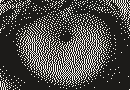
What the PNG looks like at 170, 254 and 318 DPI
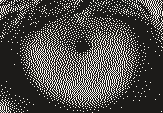
The same 13 × 9 mm of the lion's eye, dithered with Ostromoukhov exactly at each resolution, the way the export does it. All four are drawn at the same size with every file pixel as a square, so the pixels shrink as the DPI rises. These are the files, not photos of burns.
-
 170 DPI: 87 × 60 px, pixels 0.149 mm across. The whole 132 × 180 mm picture is 883 × 1,206 px.
 -
 254 DPI: 130 × 90 px, pixels 0.100 mm across. The whole 132 × 180 mm picture is 1,320 × 1,801 px.
 -
 318 DPI: 163 × 113 px, pixels 0.080 mm across. The whole 132 × 180 mm picture is 1,653 × 2,255 px.
 -
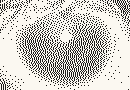 254 DPI, inverted: the inverted file for slate. The dots now sit in the light parts of the photo, which is where slate should turn pale.
Try it on the sample photo, in your browser
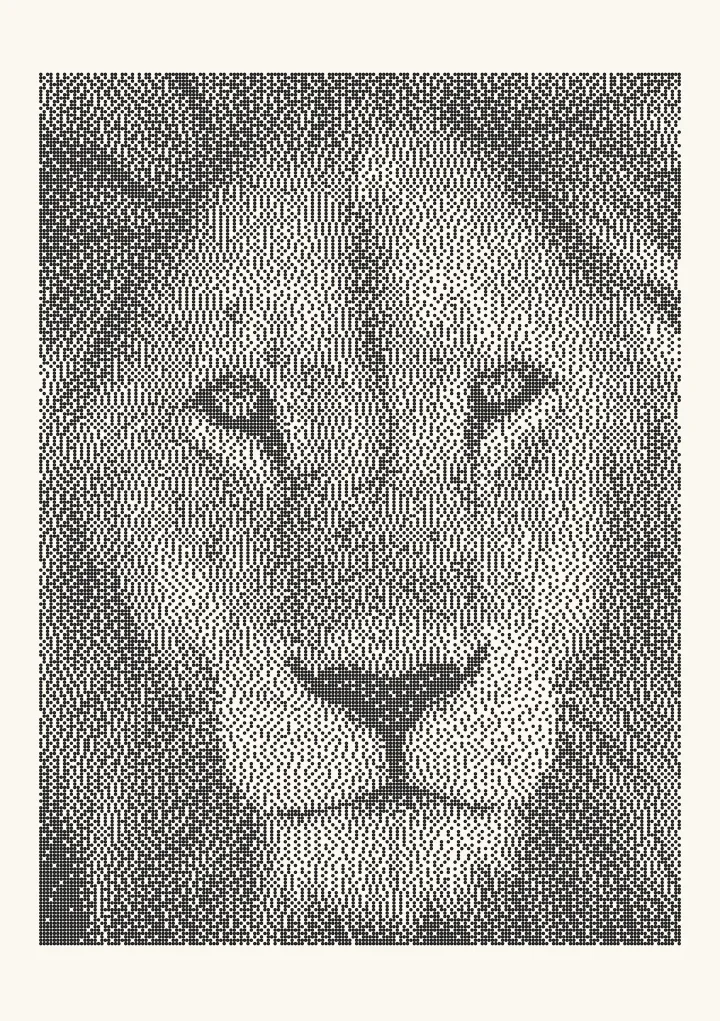
Ostromoukhov beside Jarvis–Judice–Ninke, one of the modes LightBurn's documentation recommends for photos. Pick other algorithms, change the cells or the threshold, and the dots redraw on your own computer. To keep a file, open the editor and add your photo.
Rendered in 0.0 ms on your machine. Every dot here is what a pen or laser would put down.
How to prepare a photo for laser engraving, in five steps
- Prepare the photo. Crop it first in any photo editor, because Plotcaster fits the whole photo inside the margins and has no crop tool. If the photo is grainy, blur it slightly there too: grain dithers into grit. In the editor, choose Use your own photo, or drop the image on the page. Under Photo, adjust Brightness and Contrast from their automatic values until the picture uses the full range, and turn on Invert for materials where the laser marks light, such as slate and black anodised aluminium.
- Pick an algorithm. Choose the pattern under Algorithm. Ostromoukhov and Zhou–Fang give every tone an even grain without worms. The table below matches algorithms to materials.
- Set the size. Under Paper, pick the size closest to your board and set Margin. The photo is fitted inside the margins, and that sets its size in millimetres. There is no box for an exact width, so use Margin to get close.
- Export. Open Export and choose Laser · PNG. Leave File on PNG for your laser software, or set it to G-code to send the burn straight to a GRBL laser (see below). Type a Resolution from 50 to 1,200 DPI or pick a preset: 254 · 0.1 mm, 300, 318 · 0.08 mm, 500 or 600. For a PNG, set Area to Image only to crop to the picture, or Whole page to keep the margins so the engraving lines up with the paper. Keep Exact dither at this DPI: “One pixel per laser spot, dithered again from the photo.” The dialog shows the size in millimetres, the pixels and the file size before you download.
- Import and burn a test strip. Bring the PNG into your laser software at its own resolution without resampling: in LightBurn that is Pass-Through, where the line interval should then read 25.4 ÷ DPI. Don't scale or rotate it there; export again at the new size instead. Burn a narrow strip on an offcut of the same material before the whole piece.
Cell pitch, Mark and Pen width change only the on-screen dots and the SVG. The exact PNG doesn't use them.
Which algorithm for which material
A short form of the materials notes in the laser engraving guide, which also gives a DPI range for each one, and Ink spread starting points for wood, anodised aluminium and slate.
| Material | Algorithm | Note |
|---|---|---|
| Hardwoods such as maple and cherry | Ostromoukhov or Zhou–Fang | Burns spread less than on soft wood, so dots stay clean. |
| Plywood and basswood | Ostromoukhov or Blue noise | Burns spread a lot: raise Ink spread. |
| Slate, black granite, black anodised aluminium | Bayer 8×8 or Blue noise | The laser marks light on dark: turn on Invert. |
| Painted or coated metal, tumblers | Blue noise | The coating comes off or it doesn’t, so marks are crisp. |
| Glass and clear acrylic | Blue noise | The lightest tones tend to vanish. |
| Leather | Jarvis–Judice–Ninke | A dithered engrave repeats better than greyscale. |
If you'd rather use your laser software's own modes, LightBurn's docs name Jarvis the best choice for photos and Stucki a slightly faster one; Jarvis dithering and Stucki dithering show both kernels. The guide's algorithm table covers the rest.
Import into your laser software
LightBurn
LightBurn's image modes include Jarvis, which its docs call “Generally the best choice for smooth-shaded or photo images”. For a file you have already dithered, turn on Pass-Through: “When working with images that have been pre-processed for laser engraving, enable this setting to engrave the image as-is, rather than resampling using the Image Modes described below” (LightBurn Image Mode reference). With it on, “Line Interval/DPI will be directly tied to the size of the image”, so keep the image at the size it imports at and check the line interval: “DPI is 25.4 / Line Interval”, so a 254 DPI file should read 0.1 mm. LightBurn image modes explained goes through every mode.
xTool Creative Space
xTool's guide to xTool Creative Space with the M1 lists seven bitmap modes, “Grayscale, Bayer, Floyd, Stucki, Atkinson, Jarvis, and Sierra”, and a Lines per cm setting that “determines the resolution of the image to be engraved” (xTool support). Set Lines per cm to the file's DPI ÷ 2.54: 100 for a 254 DPI file. The guide doesn't describe a setting that engraves an image as it is, so burn a small test of the file first.
LaserGRBL
LaserGRBL opens jpg, png and bmp images from File, Open File, with three ways to convert them: Line To Line, “for grayscale PWM pictures”; Dithering; and Vectorize, which it says will “produce the best result with logo and hand drawn images” (LaserGRBL raster import). Its dithering page describes a “1bit BW dithering” tool, picked from the tool options (LaserGRBL dithering tool).
The reason to dither outside your laser software: Ostromoukhov, Zhou–Fang and blue noise aren't among LightBurn's ten image modes or the seven in xTool's guide.
G-code for GRBL lasers
If you send files to a GRBL laser yourself, from LaserGRBL, Universal G-Code Sender or Candle, the export can write the burn as G-code instead of a PNG. With Exact dither at this DPI it burns the same 1-bit image the PNG holds, dot for dot; a rasterised drawing is drawn over the whole page, as a Whole page PNG would be. It needs GRBL 1.1f or later with laser mode on, $32=1.
- Rows at your DPI. Each row of pixels is one pass of the head, 25.4 ÷ DPI apart: 0.1 mm at 254 DPI. A run of black pixels is one move with the laser on, a white gap is a move at
S0, and rows with nothing to burn are skipped. - M4 dynamic power. The file starts with
M5andM4 S0. GRBL's docs: “Dynamic laser power mode will automatically adjust laser power based on the current speed relative to the programmed rate”, and “When not in motion,M4dynamic mode turns off the laser” (Grbl laser mode). - Travel with the beam off. Every move between rows is
G0withS0. In laser mode, “aG0rapid motion mode orG38.xprobe cycle will never turn on and always disable the laser”. The file ends withM5, a move back to X0 Y0 andM2. - Overscan. The head starts each row a little early and runs on past its end with the laser off, so it burns at full speed. The default is LightBurn's: “the default setting is 2.5%, meaning a cut at 100mm/sec will move an additional 2.5mm past the last cut with the laser off” (LightBurn Operations). At 1,000 mm/min that's 0.42 mm each end.
- Both ways. Every other row burns right to left. LightBurn: “Bi-directional ON is usually preferred, because it is twice as fast.” If edges look doubled, turn off Scan both ways or slow down.
Export it
- Open Export, choose Laser · PNG and set File to G-code. Machine reads GRBL laser, 1.1f or later.
- Set Resolution to a DPI your mark can resolve. With a bitmap style, keep Exact dither at this DPI. There's no Area setting: the burn sits where the picture is on the page.
- Set Origin to the corner where your machine's X0 Y0 is, Front left or Back left, and Bed size to how far it travels. Nothing in the file goes past the bed; anything past it is left out, and the dialog warns.
- Open Machine settings. Power starts at 10% of S-max, S100 of 1,000: Plotcaster's choice for a first test burn, not a machine fact. Set Laser S-max ($30) to your machine's
$30, and check Burn speed, Overscan and Page position. - Read Before you run it, then download the G-code.
Before you run it
The dialog's list for this file, word for word:
- Lasers can start fires and damage eyes in an instant. Wearing laser safety glasses, staying with the machine and ventilating are up to you. Never burn PVC or vinyl.
- Send $$: $32=1 and $30 must equal S-max, 1,000.
- Focus the laser, then burn a small test on scrap at this power and speed.
- The 10% power is a starting point, not a setting for your material.
- Zero X and Y at the page's front-left corner.
- Check the overscan fits on the bed.
- $110 and $111 cap every speed. GRBL's default is 500 mm/min, so raise them or expect a slower run.
- Run the file once with $C before you burn it.
How big the file gets
G-code is text, and senders stream it to the machine a line at a time, so a raster file is large and slow to send. These are Plotcaster's own files: the lion test photo cropped square, dithered exactly at 254 DPI, with the raster preset at its defaults.
| Picture | Pixels | Lines | File | Burn time at 1,000 mm/min |
|---|---|---|---|---|
| 100 × 100 mm | 1,000 × 1,000 | 0.69 million | 6.4 MB | about 1 h 40 min |
| 200 × 200 mm | 2,000 × 2,000 | 2.75 million | 27 MB | about 6 h 40 min |
| 300 × 300 mm | 3,000 × 3,000 | 6.2 million | 62 MB | about 15 h |
The dialog warns from 10 MB and won't build a file over 256 MB. The times count the burning rows at Burn speed and leave out acceleration, so real burns take longer, and longer still where GRBL's $110 is below Burn speed: its default is 500 mm/min.
LightBurn users: import the PNG. Use Pass-Through, as above. LaserGRBL can import the PNG as well.
Photo to score lines instead of a raster
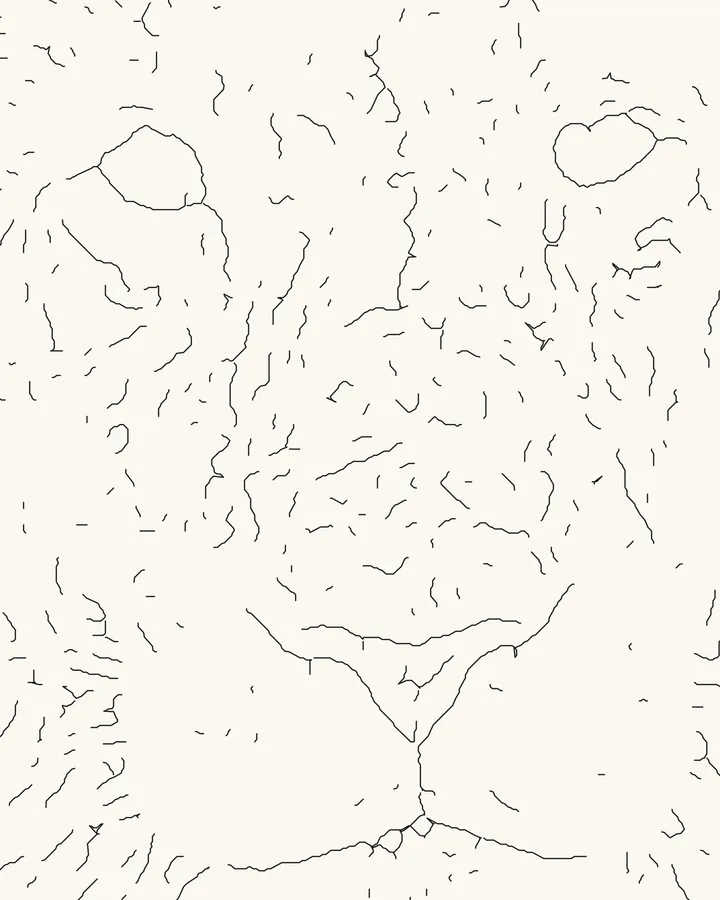
A raster engrave sweeps the whole picture row by row. A score pass follows each line once, which is quicker on sparse art and looks drawn rather than printed. Edges, Sketch and Draw turn a photo into single-stroke lines, and Trace colour does the same for line art and map images. The SVG is in millimetres, with strokes only.
Set Pen width to the width your laser burns on that material, so the preview shows how dense the lines will look. Import the SVG as vectors on a line layer; LightBurn's docs list .svg among the formats it imports (LightBurn docs). For tone made of lines instead of dots, Engrave swells its lines into bands in the shadows. The same outlines also make a wood burning pattern to follow by hand.
For a GRBL laser, the lines can go out as G-code instead: in Export, choose Pen plotter · SVG, set File to G-code and Machine to GRBL laser · burn the lines. The file burns each line with G1 … S100, 10% of S-max, at 1,000 mm/min, travels with G0 … S0, and burns each layer as many times as Passes says. The same checks apply as for a raster.
PNG or BMP?
Plotcaster's laser images are 1-bit PNG only. That rarely matters: LightBurn's docs list .png, .jpg, .bmp, .gif and .tif among the images it imports (LightBurn docs), and LaserGRBL opens png as well as bmp. If a program insists on BMP, convert the PNG in an image editor and check that the result is still pure black and white at the same pixel size. Convert an image to 1-bit explains what the PNG holds.
Engraved photo too dark?
Two causes cover most of it. The DPI is higher than your mark can resolve, so neighbouring burns overlap and fill in: lower it to 25.4 ÷ the width of the mark in millimetres. Or the burns spread past their pixels even at the right DPI: raise Ink spread under Photo, Expert, which lightens the picture before dithering. Its help text: “Raise it if plots come out darker than the preview; the drawing is lightened to match.” What DPI for laser engraving photos has the spot test and a checklist.
Maps on a laser
Plotcaster also draws street maps and contour lines of any place from OpenStreetMap and open elevation data. Score the streets from the SVG, or raster engrave a PNG at your DPI: how to make a laser engraved city map.
Your photo stays on your device
The converter is code running in your browser. It reads the photo, dithers it and writes the PNG or G-code on your device, and nothing is uploaded. There is no account and no watermark.
FAQ
- Is it free?
- Yes. There is no account, no watermark and nothing to install. The converter runs in your browser.
- Which laser software does it work with?
- Any laser software that imports PNG. The file is a plain 1-bit PNG with its DPI stored inside, so software that reads that value brings the picture in at its real size; anywhere else, set the size by hand from the millimetres shown in the export dialog. LightBurn, xTool Creative Space and LaserGRBL have their own notes above.
- Can it make G-code for my laser?
- Yes, for GRBL 1.1f or later with laser mode on (
$32=1), sent from LaserGRBL, Universal G-Code Sender or Candle. In Export, choose Laser · PNG and set File to G-code to burn a dithered photo row by row, or choose Pen plotter · SVG, File G-code and GRBL laser · burn the lines to burn a line style. Power starts at 10% of S-max, for a first test burn. G-code for GRBL lasers has the details. In LightBurn, import the PNG instead. - What DPI should I use?
- 25.4 divided by the width of the mark your laser makes, in millimetres: 254 DPI for a 0.1 mm mark, 318 DPI for 0.08 mm. The mark on the material is usually wider than the optical spot, so measure it. What DPI for laser engraving photos has the test and a conversion table.
- Do I need to invert the photo for slate?
- Yes. Slate, black granite and black anodised aluminium turn light where the laser fires, so the file has to put its dots in the light parts of the photo. Turn on Invert under Photo before you export. LightBurn’s Negative Image setting does the same during engraving, and its docs call it “useful for engraving slate or glass, where burned areas become lighter”. Use one or the other, not both.
- Can I engrave the SVG line styles?
- Yes. Every line style exports an SVG in millimetres with strokes only. Import it as vectors on a line layer, and set Pen width to the width your laser burns so the preview matches. See score lines above.
- Is my photo uploaded?
- No. The photo is read, dithered and written out as a PNG or G-code by code running on your device, and neither the photo nor the file is sent anywhere. The privacy policy lists the few things the site itself does load.
Guides and related tools
- Dithering for laser engraving: algorithms, materials and dot gain
- What DPI for laser engraving photos
- LightBurn image modes explained
- Convert an image to 1-bit
- How to make a laser engraved city map
- Photo to wood burning pattern
- Image to G-code for GRBL, Marlin and Klipper plotters
- Dither an image online
- All 16 dithering algorithms, with live demos