How to make a laser engraved city map
Make a city map from OpenStreetMap for laser engraving: street lines as SVG to score, or a 1-bit PNG at your laser's DPI to raster engrave. Free.
Published
There are two ways to put a city map on wood, slate or acrylic with a laser. Score the streets as vectors, so the laser follows every street once, the way a pen would. Or raster-engrave a 1-bit PNG made at your laser’s own DPI, so the laser sweeps the board row by row and fires wherever there is a street. Plotcaster’s Map style makes both files for any place on Earth from OpenStreetMap, in your browser, with the frame, title and data credit drawn in. It is free and needs no account.
Make a map for your laser, or see what the city map poster generator makes first.
Score the lines or engrave the picture?
| Score the SVG | Engrave the PNG | |
|---|---|---|
| Layer in your laser software | A line or vector pass | An image or raster pass |
| What the laser does | Follows each street once | Sweeps the whole map area, row by row |
| Time grows with | The total length of line | The area of the map and the number of rows |
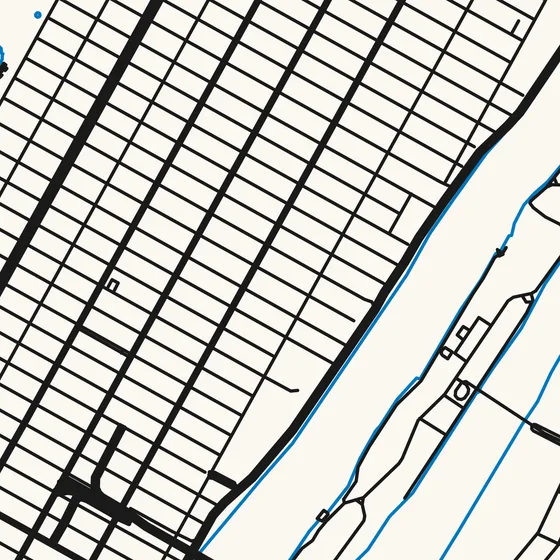
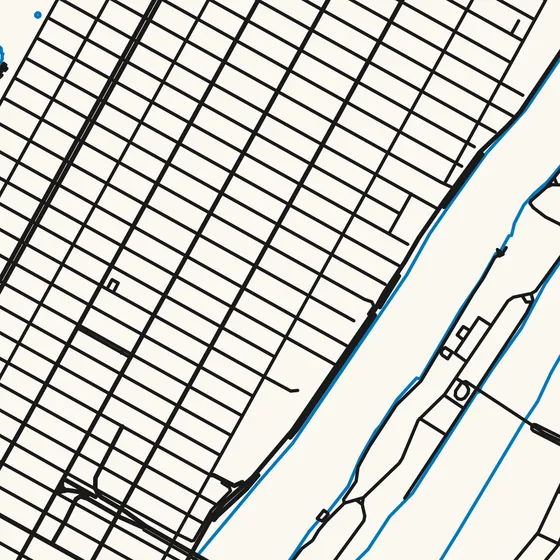
| How wide a street burns | The width of the burnt line: focus, power and speed | Pen width, drawn into the pixels |
| Suits | Major roads, coastlines, a small town, a frame to cut | Dense street grids and old town centres with thousands of short streets |
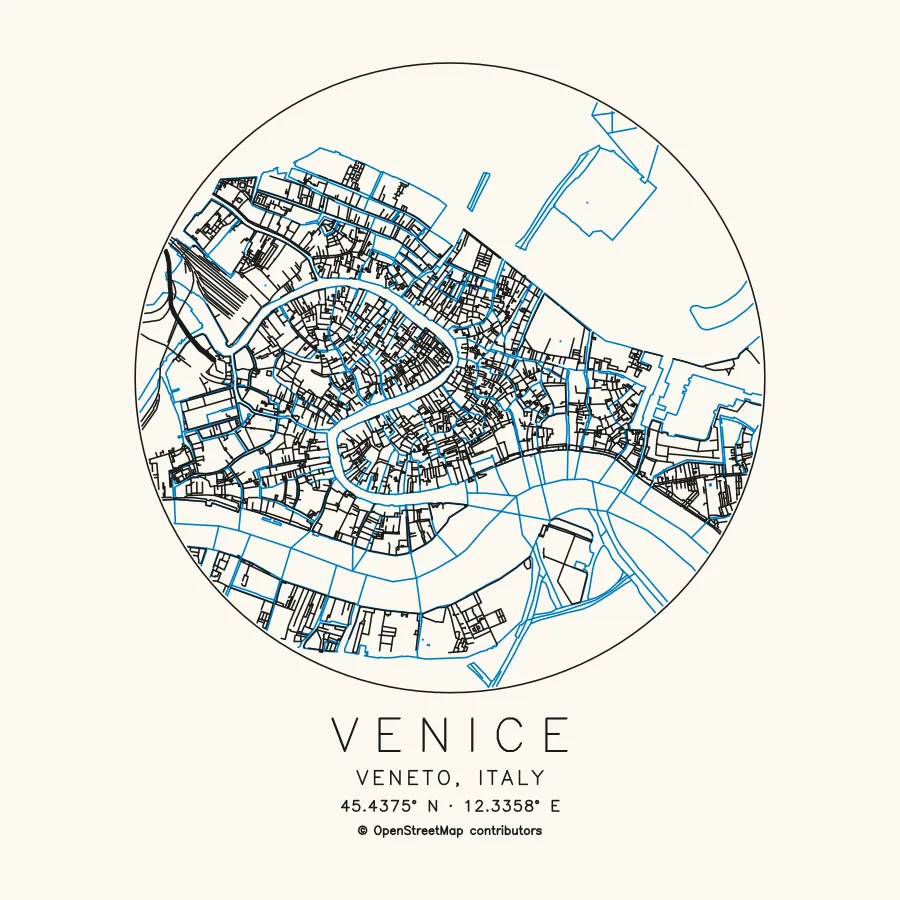
Venice shows the difference. Scoring it means tracing 13 m of line in 2,697 separate pieces, with a jump between each. Engraving the same 172 × 172 mm map at 254 DPI means 1,720 rows, however many streets there are.
Make the file
- Open Map in the editor and search for the place. Search takes towns, neighbourhoods, addresses and coordinates.
- Pick Paper to match your board, or Square 200 mm for a coaster or a round plaque, then set Margin to the border you want on the stock. The map area always takes the paper’s shape.
- Start from the Streets preset: major roads, streets, railways and water. On a small board, switch off Railways, or Streets too, for a bolder, quicker piece.
- Choose Road weight. Bolder major roads draws motorways as three parallel strokes and main roads as two, three-quarters of a pen width apart, so they burn together into one wider line. On areas under a 2 km radius, secondary streets get two strokes as well. One stroke for every road keeps every street to one line.
- Set Frame to Rectangle or Circle. The outline goes on its own layer, Frame and title, in the same ink as the roads.
- Keep Title and coordinates on if you want the place name engraved. It is written in a single-stroke font as plain lines, so there is no font to install and no text to convert.
- Keep Credit line on. It writes ”© OpenStreetMap contributors” in small single-stroke letters under the map. See credit on products.
- Open Export and choose Pen plotter · SVG to score, or Laser · PNG to raster engrave.
Pen width is burn width
Plotcaster draws every street at Pen width, and the preview shows the lines at that width. For a laser, set it to the width your laser really burns. Score a short line on an offcut of the material you will use, measure it with calipers or a loupe, and enter that. The preview then shows how dense the finished piece will look before you burn a board. If a wide burn fills in the blocks of a dense city, frame a smaller area, choose One stroke for every road, or switch off Streets.
The PNG at your laser’s DPI
In Export, choose Laser · PNG:
- Resolution takes 50 to 1,200 DPI. The quick picks are 254 DPI (a 0.1 mm line interval), 300, 318 (0.08 mm), 500 and 600. The DPI is written into the PNG.
- Area: Image only crops to the drawing inside the margins, title and credit included. Whole page keeps the margins, so the engraving lines up with the stock the way the map lines up with the paper.
- The drawing is rasterised at that DPI. Every layer is drawn at its own pen width, never thinner than 1.5 pixels, and a pixel turns black where a line covers at least half of it. The file is pure black and white, with no grey for your laser software to reinterpret.
One pixel is 25.4 ÷ DPI millimetres, and it should become one row of the laser. At 254 DPI one pixel is 0.1 mm, so a 200 × 200 mm page is 2,000 × 2,000 pixels. Photos go through the same export: see the photo to laser engraving converter.
LightBurn
LightBurn imports SVG, PNG, JPG and BMP files, among others.
- To score, import the SVG and put its layers in Line mode, which LightBurn describes as tracing “a path along the outlines of geometry in your project”.
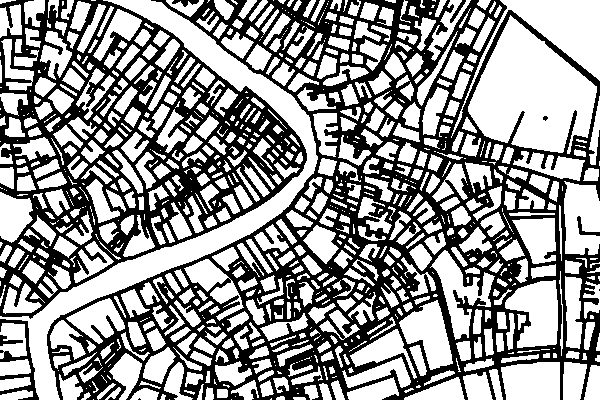
- To raster engrave, import the PNG, use Image mode and turn on Pass-Through. In LightBurn’s words: “When working with images that have been pre-processed for laser engraving, enable this setting to engrave the image as-is, rather than resampling using the Image Modes described below. Line Interval/DPI will be directly tied to the size of the image.”
- Match the line interval to the PNG’s DPI. The same page gives DPI as 25.4 ÷ line interval, so the interval is 25.4 ÷ DPI: 0.1 mm at 254 DPI, and 0.0799 mm at 318 DPI.
Power, speed and focus depend on your machine and the material, so burn a test on an offcut first. The LightBurn image modes guide covers the other modes.
xTool Creative Space
xTool Creative Space processes bitmaps with its own modes (Grayscale, Bayer, Floyd, Jarvis, Stucki, Sierra and Atkinson) and sets resolution as Lines per cm, which xTool describes as “the number of lines in one centimeter”. To keep one row of pixels to one line, set Lines per cm to DPI ÷ 2.54: 100 lines per cm for 254 DPI, about 125 for 318 DPI.
LaserGRBL
LaserGRBL’s raster import offers three tools: Line To Line, “for grayscale PWM pictures”; Dithering; and Vectorize!, which it recommends for logos and hand-drawn images. The map PNG is already pure black and white, so there are no grey levels for any of them to interpret.
The Snazzy Maps route
Many laser map tutorials start at Snazzy Maps, “a repository of different styles for Google Maps”: pick a style, take a screenshot and trace it. Plotcaster can do that tracing too. Trace colour keeps one colour of a screenshot and traces it as single strokes; see extract roads or contour lines from a map image.
Check the rules before you sell anything made that way. Google’s geo guidelines list “Consumer & retail goods or packaging (t-shirts, beach towels, shower curtains, mugs, posters, stationery, etc.)” under uses of Google Maps in print that are not allowed. OpenStreetMap data allows commercial use as long as you credit it, which is why the Map style draws from it. This is not legal advice: read the terms for what you plan to make.
Water, frames and limits
- Water is lines. Rivers and canals are drawn as centrelines, and coasts and lake shores as outlines. Nothing is filled, so a lake engraves as its shoreline.
- Streets are single strokes, not the outlines of blocks, so a map can’t become cut-out pieces, and there are no stacked, layered or 3D maps.
- The frame is the one outline to cut. A Rectangle or Circle frame is a closed shape. It shares the Frame and title layer with the lettering, so separate the outline from the title in your laser software before you give it a cut layer. One file per layer (zip) in the SVG export puts that layer in a file of its own.
Credit on products
The OpenStreetMap licence allows commercial use. For physical goods, the OpenStreetMap Foundation’s attribution guidelines say merchandise made with its data “must provide attribution on any packaging, at the point of sale, and, to the extent possible, somewhere on the item itself”, and that “the text must be readable and include the URL openstreetmap.org/copyright printed out”.
- Keep Credit line on, so ”© OpenStreetMap contributors” is engraved with the map.
- The plotted line doesn’t include the URL, so add openstreetmap.org/copyright on the back of the piece, its label or tag.
- Put the credit and the URL in your listing and on the packaging.
A PNG can’t carry the credit inside the file the way the SVG does, which is one more reason to burn it onto the piece.
FAQ
Can I cut the map out of wood? Only its frame. Streets are single lines rather than outlines, so there are no pieces to cut out. Score or engrave the streets, and cut the rectangle or circle.
Which DPI should I use? A resolution your laser engraves cleanly, with the line interval set to match. 254 DPI and 318 DPI give round intervals of 0.1 mm and 0.08 mm. Laser engraving DPI explains how to find the right number for your machine.
Why doesn’t my engraving match the preview? Check three things, in this order: that the image layer is set to pass-through, so the software engraves the pixels as they are; that the line interval matches the PNG’s DPI; and that Pen width matches the width your laser burns.
Can I make a layered topographic map? No. Plotcaster makes lines, not stacked layers or 3D models. For contour lines to score or engrave, use the topographic map generator.
Is it free? Yes, with no account. What you type in the search goes to komoot’s Photon service, and the map area to OpenStreetMap and elevation tile servers. The privacy policy has the details.