Convert an image to 1-bit: threshold or dither, as a real 1-bit PNG
Every pixel black or white. Use a threshold for logos and line art, and dithering for photos, so the greys survive as a pattern of dots. Download a 1-bit PNG with the DPI in the file.
Free, no account, nothing to install. The image stays on your device.
The button opens the editor on the Dither style with Floyd–Steinberg chosen. Add your image, then choose Export, Laser · PNG, which saves the 1-bit PNG whatever you use it for.
- File 1-bit greyscale PNG: black and white only
- Resolution 50 to 1,200 DPI, stored in the file
- Patterns 16 algorithms, from a plain threshold to Zhou–Fang
- Size Set by paper, margin and DPI, not typed in pixels
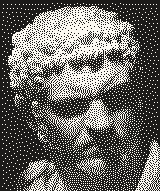
Try it on the sample photo, in your browser
Floyd–Steinberg beside a plain threshold on the lion test photo. Change the algorithms, the cells across or the threshold; it redraws on your own computer. To save a file, open the editor and add your image.
Rendered in 0.0 ms on your machine. Every dot here is what a pen or laser would put down.
Threshold or dithering?
A threshold makes every pixel darker than a cut-off black and every other pixel white. Lines and letters stay crisp, but every shade in between is lost, so a face turns into flat patches. Dithering makes the same black or white choice for each pixel, but either passes its rounding error on to the pixels next to it (error diffusion) or compares it with a tiled pattern of thresholds (ordered dithering). The density of black then follows the grey. What is dithering? explains it from the start.
Use a threshold for logos, text, line art and anything already two-colour. Use dithering for photos and anything with shading.
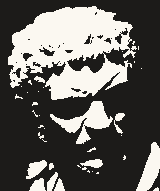 Threshold: every pixel against 50%
- Floyd–Steinberg: error diffusion
Pick a look
Every algorithm gives a different texture to the same greys. The ramps are Plotcaster's own output, a smooth grey gradient drawn at two screen pixels per dot.
| Look and algorithm | Grey ramp |
|---|---|
| Crisp and contrasty, like early Macintosh graphics Atkinson Atkinson dithering |  |
| A retro grid Bayer 4×4 or 8×8 How Bayer dithering works |  |
| Even grain with no pattern Blue noise Blue noise dithering, and the Obra Dinn story |  |
| The classic Floyd–Steinberg Floyd–Steinberg dithering explained |  |
| The smoothest tone Ostromoukhov or Zhou–Fang Zhou–Fang dithering |  |
| Logos, text and line art Threshold Threshold: no dithering |  |
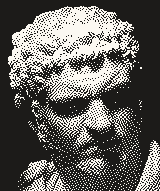 Atkinson
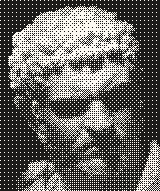 Bayer 4×4
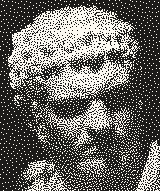 Blue noise
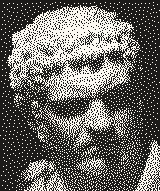 Zhou–Fang
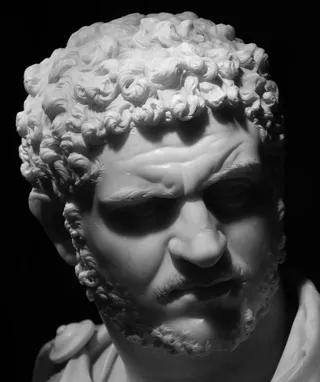
Each is the bust at 160 × 191 pixels, drawn at two screen pixels per pixel. Tap one to open that algorithm in the editor. Photo: Roman bust, Ian Noble, 2019, Unsplash License.
Pixel size and DPI
Plotcaster sizes a picture in millimetres, from the paper and the margin, and the DPI turns millimetres into pixels:
pixels across = picture width in mm × DPI ÷ 25.4
A worked example. The lion test photo on A5 with 8 mm margins fills 132 × 180 mm. At 254 DPI that is 132 × 254 ÷ 25.4 = 1,320 pixels across and 1,801 down. At 77 DPI the same picture is 400 × 546 pixels.
You can't type exact pixel dimensions, which matters if you are making an image for an e-ink panel or a sprite of a fixed size. To aim for a number, choose the paper and margin, set Area to Image only, and change the DPI, any whole number from 50 to 1,200, until the export dialog shows the pixels you need. The photo keeps its shape, so crop it to the target's proportions first, or only one side will match. The smallest pictures come from small paper with a wide margin at a low DPI. At the other end, the export warns above 60 megapixels and refuses above 150 megapixels, naming the highest DPI that fits.
What's in the file
- 1 bit per pixel. The PNG is greyscale at bit depth 1: black is ink, or a burn, and white is paper. The raw pixels take an eighth of the space of an 8-bit greyscale image before compression.
- The DPI. A pHYs chunk stores the resolution, so software that reads it knows the picture's real size. PNG counts pixels per metre, so 254 DPI is stored as 10,000.
- No colour and no transparency. The editor's paper and ink colours don't go into the PNG. With two or three inks, all of them go into one black and white image.
- The picture, or the page. Image only crops to the picture. Whole page places it on a white page with the margins.
- Dithered at its own resolution. From the Dither style, Exact dither at this DPI dithers the image again at the file's resolution, one pixel per spot. Rasterise the drawing saves the dots as drawn on screen instead. From any other style, the drawing is rasterised: every line in black at its pen width, with a pixel inked where the line covers at least half of it.
PNG, not BMP
Plotcaster's 1-bit images are PNG only. Most programs that take 1-bit images take PNG: LightBurn's docs list .png alongside .bmp among the images it imports (LightBurn docs). If a tool needs BMP, convert the PNG in an image editor and check that it still has only black and white pixels at the same size.
What people use 1-bit images for
- Laser engraving. A laser fires or it doesn't, so it needs exactly this file at its own DPI: see the photo to laser engraving converter.
- Pen plotters. The same patterns as pen marks: the Dither style saves every ink cell as a dot, tick, square or dash in an SVG.
- Pixel art and 1-bit art. Ordered patterns suit sprites and small screens: pixel art dithering covers the patterns and when to skip them.
FAQ
- Is it really 1-bit?
- Yes. The PNG is written as greyscale at a bit depth of 1, so each pixel is stored as a single bit: black or white, with nothing in between and no transparency. Any image viewer that shows a file’s bit depth will say 1.
- Can I keep my image’s exact pixel size?
- Not directly. The editor sizes the picture in millimetres, from the paper and the margin, and the DPI turns that into pixels, so there is no box for a width in pixels. To get close, crop the image to the proportions you need, choose a small paper size with a wide margin, set Area to Image only, and change the DPI, from 50 up, until the export dialog shows the pixels you want. Pixel size and DPI works through an example.
- Can I choose the two colours?
- No. The PNG is always black and white. The ink and paper colours in the editor change the preview and the SVG, not the PNG. If you want, say, dark blue on cream, recolour the file afterwards in an image editor.
- Can it make GIFs or animations?
- No. One picture in, one still PNG out.
- Is my image uploaded?
- No. It is converted by code running in your browser, and neither the image nor the PNG leaves your device.