What DPI for laser engraving photos? Line interval, spot size and dot gain
Work out the DPI for laser engraving a photo from your spot size, convert line interval, lines per cm and DPI, and fix engravings that come out too dark.
Published
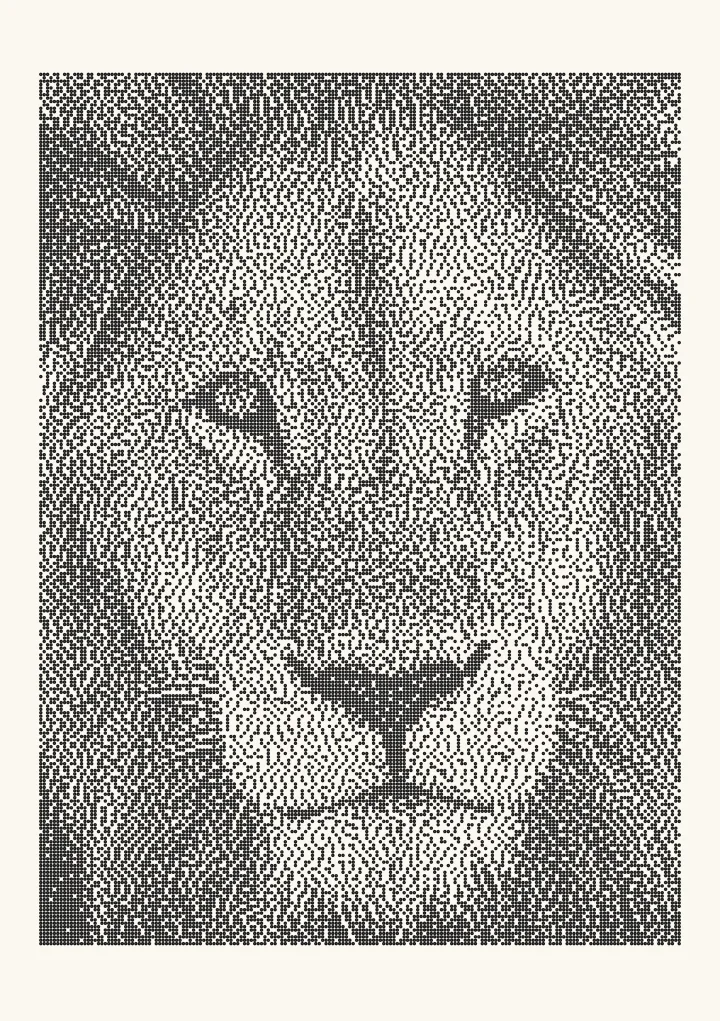

Sample render. Slide to compare the photo with the result. Try the algorithm live below.
Rendered in 0.0 ms on your machine. Every dot here is what a pen or laser would put down.
Engrave a photo at the DPI where one pixel is one laser spot: DPI = 25.4 ÷ spot diameter in millimetres. A 0.1 mm spot wants 254 DPI and a 0.08 mm spot wants 318 DPI, the two presets Plotcaster’s PNG export labels “254 · 0.1 mm” and “318 · 0.08 mm”. Line interval is the same number the other way up, 25.4 ÷ DPI, and lines per cm is DPI ÷ 2.54. Going above what your spot can resolve adds no detail: the burns overlap and the photo engraves dark.
What counts is the mark your laser makes on your material, which is usually bigger than the optical spot, so measure it with the test below. Then dither the photo at that DPI and engrave it without resampling.
Dither a photo at your laser’s DPI.
Line interval, DPI and lines per cm
Laser software describes resolution in three ways. They are the same setting:
- Line interval in mm = 25.4 ÷ DPI
- DPI = 25.4 ÷ line interval in mm
- Lines per cm = DPI ÷ 2.54, or 10 ÷ line interval in mm
- DPI = lines per cm × 2.54
LightBurn works in line interval and DPI; its docs say “DPI is 25.4 / Line Interval” (Image Mode reference). xTool’s guide to xTool Creative Space with the M1 uses Lines per cm, which “Sets the number of lines in one centimeter. This parameter determines the resolution of the image to be engraved” (xTool support).
| DPI | Line interval | Lines per cm | Pixels across 100 mm |
|---|---|---|---|
| 127 | 0.200 mm | 50.0 | 500 |
| 170 | 0.149 mm | 66.9 | 669 |
| 254 | 0.100 mm | 100.0 | 1,000 |
| 300 | 0.085 mm | 118.1 | 1,181 |
| 318 | 0.080 mm | 125.2 | 1,252 |
| 500 | 0.051 mm | 196.9 | 1,969 |
| 600 | 0.042 mm | 236.2 | 2,362 |
254 DPI is exactly a 0.1 mm interval and exactly 100 lines per cm, which is why it is such a convenient number in metric software.
Find your spot size with a test
Spec sheets give an optical spot, measured in focus. The mark on the material is what the dither has to match, and it depends on the material, the power, the speed and the focus. Measure it once per material:
- Burn single dots. Engrave a row of isolated dots a few millimetres apart, at the power and speed you would use for a photo on that material.
- Measure them. Use calipers or a loupe with a scale, and average several dots.
- Burn stepped fills. Engrave a set of small solid squares at stepped line intervals, for example 0.06, 0.08, 0.10, 0.12, 0.15 and 0.20 mm.
- Pick the interval where the lines just touch. At wider intervals you’ll see bare stripes between the lines; at narrower ones the lines overlap. The widest interval with no stripes is about your spot on that material. LightBurn’s docs put it the same way: “The ideal Line Interval will produce lines that just touch, without overlapping.”
- Convert. DPI = 25.4 ÷ that interval. Write it down next to the material.
Why too high a DPI engraves dark
A dither assumes each black pixel becomes a black square the size of one pixel. A laser makes a round burn, and it is usually larger than its pixel. A round 0.15 mm burn covers π × 0.075² ≈ 0.018 mm², 1.8 times the 0.01 mm² of a 0.1 mm pixel. So even scattered dots engrave darker than the file says, and in the mid-tones neighbouring burns touch and fill in.
Push the DPI up and the pixels shrink while the burn stays the same size. The diagram shows one millimetre of material with a 0.1 mm spot and every other pixel burned, a 50% grey, at three resolutions:
127 DPI
0.2 mm pixels: too light
254 DPI
0.1 mm pixels: one spot each
508 DPI
0.05 mm pixels: spots overlap
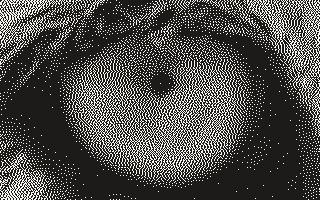
Here is what the files look like. The same 16 × 10 mm of the lion test photo, dithered exactly at each DPI with Jarvis–Judice–Ninke and drawn at the same size, each pixel as a square. This is the file, not a burn. At 508 DPI it only engraves like this if your spot is 0.05 mm or smaller.


Ink spread: lighten before dithering
Lowering the DPI to match the spot fixes the overlap. The burn is still round and a little bigger than its pixel, so the mid-tones can still come out dark. Plotcaster’s Ink spread control (Photo > Expert) corrects for that before dithering. Its help text: “Raise it if plots come out darker than the preview; the drawing is lightened to match.”
The app models spread the way printers model dot gain: with a spread of s, a requested coverage c lands as c + s·c·(1 − c). To land at 50%, a spread of 20% asks for about 45% coverage. Burn a test grid of grey patches, compare it with the file, and raise Ink spread until the mid-tones match. The laser engraving guide has notes per material.
Resample or pass through
Once the file is at the right DPI, the software must engrave it without redrawing it on a different grid:
- LightBurn. Turn on Pass-Through: “when working with images that have been pre-processed for laser engraving, enable this setting to engrave the image as-is, rather than resampling using the Image Modes” (Image Mode reference). With it on, “Line Interval/DPI will be directly tied to the size of the image”, so keep the image at the size it imports at and check that the interval reads 25.4 ÷ DPI. LightBurn image modes explained covers the details.
- xTool Creative Space. Set Lines per cm to the file’s DPI ÷ 2.54, for example 100 for a 254 DPI file (xTool support). xTool’s guide doesn’t describe a setting that engraves an image as-is, so burn a small test of the file first.
- LaserGRBL. Its raster import offers Line To Line, for greyscale PWM pictures, Dithering and Vectorize (LaserGRBL raster import). Its dithering tool page advises “Use a high quality resolution to obtain the best engraving result” (LaserGRBL dithering tool).
- Plotcaster. In the PNG export, Exact dither at this DPI gives “One pixel per laser spot, dithered again from the photo”. The DPI is written into the file.
Pixel dimensions
Pixels = size in mm × DPI ÷ 25.4, in each direction:
- 100 mm at 254 DPI = 1,000 pixels.
- The A5 test picture on this page, 132 × 180 mm, is 1,320 × 1,801 pixels at 254 DPI and 2,640 × 3,602 pixels at 508 DPI.
- A whole A2 page, 420 × 594 mm, at 600 DPI is 9,921 × 14,031 pixels: about 139 megapixels.
Plotcaster builds laser PNGs inside the browser, from 50 to 1,200 DPI. Above 60 megapixels it warns that the file will be slow to build and heavy for laser software; above 150 megapixels it refuses and names the highest DPI that fits. A higher DPI doesn’t add detail that isn’t there: Plotcaster works from the photo at up to 1,600 pixels on its long side, so past a point you get finer dots, not a sharper picture.
Checklist: engraved photo too dark
- DPI too high for the spot. Lower it to 25.4 ÷ your measured spot size.
- The file was resampled. Use Pass-Through or its equivalent, don’t scale or rotate the image in the laser software, and export again at the size you need.
- Burn spread in the mid-tones. Raise Ink spread before exporting.
- Power too high or speed too low. Burn a test strip and pick the setting where single dots are just under the line interval.
- Focus. An out-of-focus beam makes a bigger spot, which behaves like a higher DPI.
- Tone matching set to Linear. Plotcaster’s help says Linear “matches measured ink coverage, which prints darker”, while Perceptual, the default, “makes the drawing look like the photo”. Switch back to Perceptual under Photo > Expert.
- A dark photo. Raise Brightness, or lower Contrast if the shadows block up.
- Slate or black anodised aluminium. These mark light, so the image has to be inverted: turn on Invert under Photo.
FAQ
Should I use 254 or 300 DPI? Whichever matches your measured spot. 254 DPI is a 0.1 mm interval and 300 DPI is 0.085 mm, 18% more lines. If your burn is 0.1 mm or wider, 300 DPI overlaps and engraves darker.
Does a higher DPI give more detail? Only up to your spot size and the detail in the photo. Past that, pixels shrink but the burn doesn’t, so the extra DPI turns into overlap and darker mid-tones.
What is line interval? The distance between scan lines. LightBurn’s docs: it “Controls the spacing between scanned rows, and indirectly controls DPI”. 0.1 mm is 254 DPI.
How do I convert lines per cm to DPI? Multiply by 2.54. 100 lines per cm is 254 DPI, and 125 lines per cm is about 318 DPI.
What DPI does Plotcaster export? Any whole number from 50 to 1,200 DPI, with presets for 254 (0.1 mm), 300, 318 (0.08 mm), 500 and 600. The export dithers the photo again at that DPI, one pixel per spot, and writes the DPI into the PNG. Try it with Jarvis or Ostromoukhov, or read convert an image to 1-bit for what the file holds. The photo to laser engraving converter page has the full route.