LightBurn image modes explained: Jarvis, Stucki, halftone and pass-through
What each LightBurn image mode does to a photo: Jarvis vs Stucki, Newsprint vs Halftone, when Grayscale makes sense, and how pass-through works.
Published
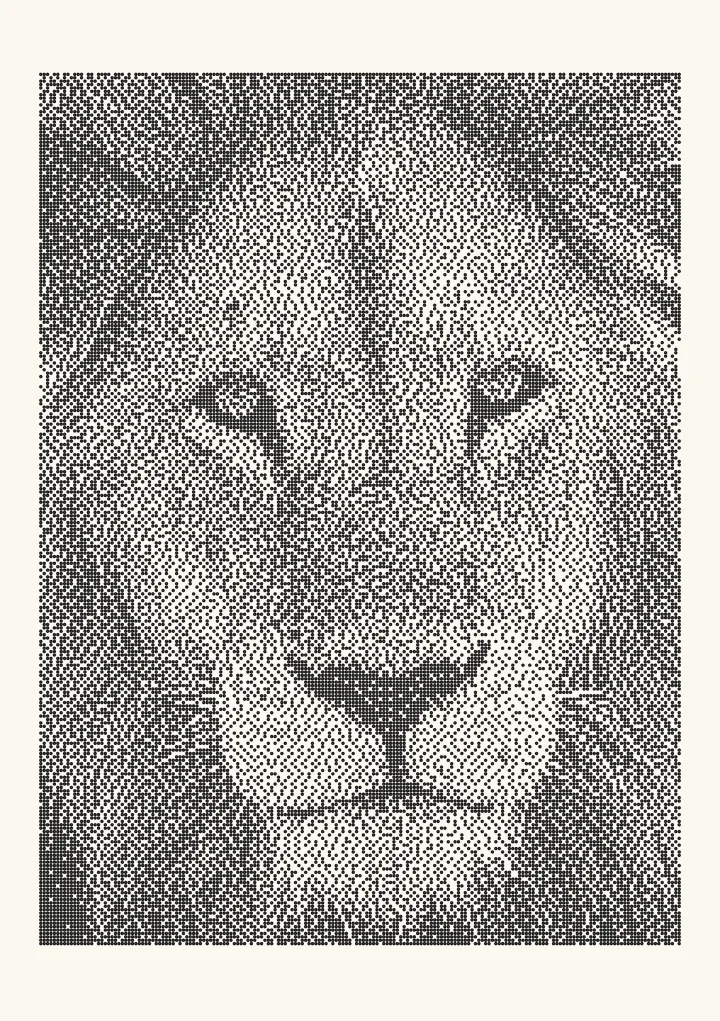

Sample render. Slide to compare the photo with the result. Try the algorithm live below.
Rendered in 0.0 ms on your machine. Every dot here is what a pen or laser would put down.
LightBurn’s documentation lists ten image modes: Threshold, Ordered, Atkinson, Dither, Stucki, Jarvis, Newsprint, Halftone, Sketch and Grayscale. Nine of them turn a photo into spots that are either burned or not; Grayscale varies the laser’s power instead. For photos, the docs call Jarvis “Generally the best choice for smooth-shaded or photo images”, with Stucki as a slightly faster alternative. A separate Pass-Through setting engraves an image that is already black and white as it is, which is how you use a dithering algorithm LightBurn doesn’t have.
Source for every quote on this page, unless another link is given: LightBurn’s Image Mode reference.
Every mode at a glance
| Mode | What LightBurn’s docs say | Nearest Plotcaster algorithm |
|---|---|---|
| Threshold | “A simple on / off switch if the image is dark / bright at a given location. This should only be used for images that are two-color black/white to begin with, such as an image you dithered outside of LightBurn. Don’t use this mode for grayscale or color images” | Threshold |
| Ordered | “Also called ordered dithering, this is a step above threshold for grayscale images, and uses densely packed on/off dots to approximate shading” | An ordered, Bayer-style pattern. The docs don’t give the matrix size; see Bayer dithering |
| Atkinson | “A good ‘in between’ mode for solid color or smooth shaded images. It resembles Jarvis but preserves detail better, though struggles to show detail in very light and dark areas” | Atkinson |
| Dither | “Also called error diffusion dithering, this is the best choice for smoothly shaded images, like photos” | The docs don’t name the kernel. Floyd–Steinberg is the classic error diffusion kernel |
| Stucki | “A good choice for smooth-shaded or photo images, with slightly faster processing than Jarvis” | Stucki |
| Jarvis | “Generally the best choice for smooth-shaded or photo images, with slightly slower but better processing than Stucki” | Jarvis–Judice–Ninke |
| Newsprint | “A decorative pattern that imitates newsprint halftoning by generating a grid of spots that are larger in darker areas” | None. Plotcaster has no clustered-spot halftone |
| Halftone | “Good quality shading for high DPI images. It is similar to Newsprint but can have variable cell size and pattern angle” | None |
| Sketch | “Useful for line drawings or handwriting, as it tries to detect hard edges” | Nearest is the Edges style, which is different: it draws outlines as vector lines |
| Grayscale | “Varies power output as a percentage between Min and Max Power, using Min Power for the lightest shades and Max Power for the darkest” | None. Every Plotcaster algorithm is on or off |
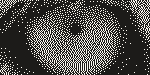
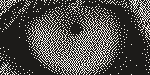
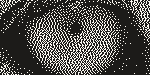
Here is what the equivalent algorithms do to one small patch of a photo. Each is the lion’s left eye, 15 × 7.5 mm, dithered exactly at 254 DPI, which is a 0.1 mm line interval, and drawn at two screen pixels per laser spot. These are Plotcaster output of the equivalent algorithm, not LightBurn output; LightBurn’s own version of a mode can differ in detail.



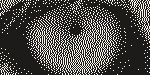
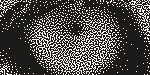
Jarvis vs Stucki
Jarvis (Jarvis–Judice–Ninke, 1976) and Stucki (1981) are the same shape of error diffusion. Each pixel is rounded to burn or no burn, and the rounding error is shared among the same 12 neighbours: two to the right, and five on each of the next two rows. Only the weights differ.
Jarvis–Judice–Ninke (÷ 48)      Stucki (÷ 42)
         #  7  5                         #  8  4
   3  5  7  5  3                   2  4  8  4  2
   1  3  5  3  1                   1  2  4  2  1
Add up the four nearest neighbours (right, below-left, below and below-right). Jarvis gives them 24 of 48 parts, half the error. Stucki gives them 24 of 42 parts, about 57%. Stucki keeps more of the correction close to the pixel, so edges come out a little crisper; Jarvis spreads it further, so tone is a little smoother and softer. LightBurn’s own descriptions name two differences. One is speed: Stucki has “slightly faster processing than Jarvis”, and Jarvis “slightly slower but better processing than Stucki”. The other is the mid-tones: Stucki “works somewhat similarly to Dither mode to produce smooth shading, and likewise struggles in midtones”, while Jarvis “doesn’t struggle with midtones”.
Look at the mid-tones first when you compare them. The live demo near the top of this page shows Stucki beside Jarvis–Judice–Ninke on the same photo. Fine fur and hair are where Stucki’s crisper edges can show; skin and sky are where Jarvis’s softer spread can hide texture. The algorithm pages have the history: Jarvis dithering and Stucki dithering.
Newsprint and Halftone
The dithering modes scatter single dots. Newsprint and Halftone gather ink into round spots on a grid instead, and the spots grow as the tone gets darker, like a newspaper photo. Newsprint is “A decorative pattern that imitates newsprint halftoning by generating a grid of spots that are larger in darker areas. It has good tonal range, but is visibly patterned”. Halftone is “similar to Newsprint but can have variable cell size and pattern angle”.
Clustered spots help where a single burned dot won’t hold: coarse or open-grained wood, surfaces where one 0.1 mm burn blurs into the grain or doesn’t mark reliably. A bigger spot survives where scattered single dots turn to mush. The cost is a visible screen pattern and less fine detail. Plotcaster doesn’t make clustered halftones, so for this look use LightBurn’s modes.
Grayscale
Grayscale is the only mode that doesn’t make dots: it “Varies power output as a percentage between Min and Max Power, using Min Power for the lightest shades and Max Power for the darkest”. The docs go on: “With a diode laser this can provide great shading but is harder to get right than plain dithering. With a CO2 laser, grayscale mode can achieve variable depth (3D) engraving rather than shading.” Either way, it only gives a photo if the material’s mark gets steadily darker as the power rises. Many materials don’t behave like that: below some power nothing happens and above it the surface marks fully, so the in-between tones collapse. The laser engraving guide’s FAQ covers when Grayscale beats dithering, and a power test strip on a scrap of your material settles it.
Pass-Through
The current docs describe the setting like this: “When working with images that have been pre-processed for laser engraving, enable this setting to engrave the image as-is, rather than resampling using the Image Modes described below. Line Interval/DPI will be directly tied to the size of the image.”
LightBurn’s older documentation adds the detail (EngravingImages.md on GitHub). Pass-Through “tells LightBurn not to perform any resizing or resampling of the image, which it does by default”, and “LightBurn will send each line of pixels from the image directly to the laser using Threshold mode”. It also warns: “You can uniformly resize the image, but you cannot do non-uniform resizing (different scaling applied to width & height) and you cannot rotate the image, as both of these require resampling to process correctly.”
Why a resampled 1-bit file goes wrong
A dithered file is a pattern drawn on one exact grid of pixels. Without Pass-Through, LightBurn resamples the image to its own grid of scan lines and runs an image mode on the result. Resampling averages neighbouring dots back into greys, and the mode then dithers those greys again. Two grids that don’t line up beat against each other, which shows as stripes, moiré or muddy clumps. The fix is to make the two grids the same.
Matching the line interval to the file
LightBurn’s docs define the two settings together: Line Interval “Controls the spacing between scanned rows, and indirectly controls DPI”, and “DPI is 25.4 / Line Interval”. So the interval that matches a file is 25.4 ÷ the file’s DPI:
| File DPI | Line interval |
|---|---|
| 254 | 0.100 mm |
| 300 | 0.085 mm |
| 318 | 0.080 mm |
| 500 | 0.051 mm |
| 600 | 0.042 mm |
Those are the presets in Plotcaster’s PNG export. With Pass-Through on, the interval is tied to the image’s size, so there is nothing to type: keep the image at the size it imported at, and check that the interval reads 25.4 ÷ the file’s DPI. If it reads something else, the image has been scaled. What DPI for laser engraving photos explains how to pick the right DPI for your spot size.
Dithering outside LightBurn
Plotcaster has sixteen dithering algorithms. These aren’t among LightBurn’s ten modes: Ostromoukhov, Zhou–Fang, blue noise, Burkes and the three Sierra kernels, Sierra, Sierra two-row and Sierra lite. LightBurn describes one Ordered mode, where Plotcaster offers Bayer 2×2, 4×4, 8×8 and 16×16 separately. Ostromoukhov and Zhou–Fang give every tone an even grain with no worms, which is why the laser engraving guide recommends them for photos.
To engrave one of them with LightBurn:
- Open the photo in Plotcaster with the Dither style and pick the algorithm.
- Under Paper, choose the size and margin. The picture is fitted inside the margins, and that sets its size in millimetres.
- Download a PNG. Set Resolution to your DPI, Area to Image only, and choose Exact dither at this DPI. The photo is dithered again at that resolution, one pixel per laser spot, and the DPI is written into the file.
- Import the PNG into LightBurn, put it on an Image layer and turn on Pass-Through. Check that the Line Interval reads 25.4 ÷ DPI: 0.1 mm for a 254 DPI file.
- Check the size after import. Don’t stretch or rotate it; if it needs to be bigger, export it again at the new size.
Everything runs in your browser, and the photo is never uploaded. The photo to laser engraving converter page walks through the whole route, including xTool Creative Space and LaserGRBL.
Plotcaster’s export can also write G-code for GRBL lasers, for LaserGRBL, UGS or Candle. In LightBurn, import the PNG instead and use Pass-Through, or Threshold, which LightBurn says is for images dithered elsewhere.
A test that settles it
The best mode for a photo depends on the material, the power and the spot, so the fastest answer is a test burn:
- Pick a photo with both smooth areas, such as skin or sky, and fine detail, such as hair or fur. Crop it to a narrow strip so each test is quick.
- In LightBurn, make one copy per mode you want to compare, all the same size, with the same line interval, power and speed you would use for a photo on that material.
- Add your own dithered versions from Plotcaster, imported with Pass-Through at the matching line interval.
- Label each copy with a small text on a Line layer, burn them side by side on one scrap, and photograph the result under even light.
- Judge at arm’s length first, then close up. Worms, grids and clumps show close up; muddy mid-tones show from a distance.
FAQ
Which LightBurn image mode is best for photos? LightBurn’s docs call Jarvis “Generally the best choice for smooth-shaded or photo images”, Stucki a slightly faster alternative, and Dither “the best choice for smoothly shaded images, like photos”. Burn a test strip of all three. For algorithms LightBurn doesn’t have, dither outside it and use Pass-Through.
Why does my pass-through image engrave all black? Pass-Through sends each line of pixels “using Threshold mode”, so it only works with a file that is already black and white. A greyscale photo sent this way is thresholded, so its shading turns into flat black and white patches, and a dark photo engraves mostly black. If the file really is dithered, the usual cause is a DPI higher than your spot can resolve, so the burns overlap and fill in; see what DPI for laser engraving photos. Also check that the image wasn’t inverted twice, in the file and with LightBurn’s Negative Image setting.
Should I use Grayscale or dithering? Dithering is the safer default, because most materials don’t darken steadily with power. Grayscale can work on materials that do; run a power test strip before a whole job.
What does Sketch mode do? It is “Useful for line drawings or handwriting, as it tries to detect hard edges”, and it “engraves only at the areas where light and dark values meet at hard edges”. For clean outlines of a photo as vector lines, see Edges.
Does LightBurn have Floyd–Steinberg dithering? Its Dither mode is “error diffusion dithering”, but the docs don’t name the kernel. Floyd–Steinberg is the classic error diffusion kernel; to be sure you’re engraving exactly Floyd–Steinberg, dither the photo in Plotcaster and use Pass-Through.
Newsprint or Halftone? Both cluster ink into spots that grow with tone. Halftone adds control over the cell size and the angle of the pattern, and LightBurn describes it as “Good quality shading for high DPI images”.