Dithering for laser engraving: photos that burn right first time
Which dithering to pick for laser photo engraving, how to prep the photo, match DPI to spot size, allow for dot gain, and use LightBurn pass-through.
Updated
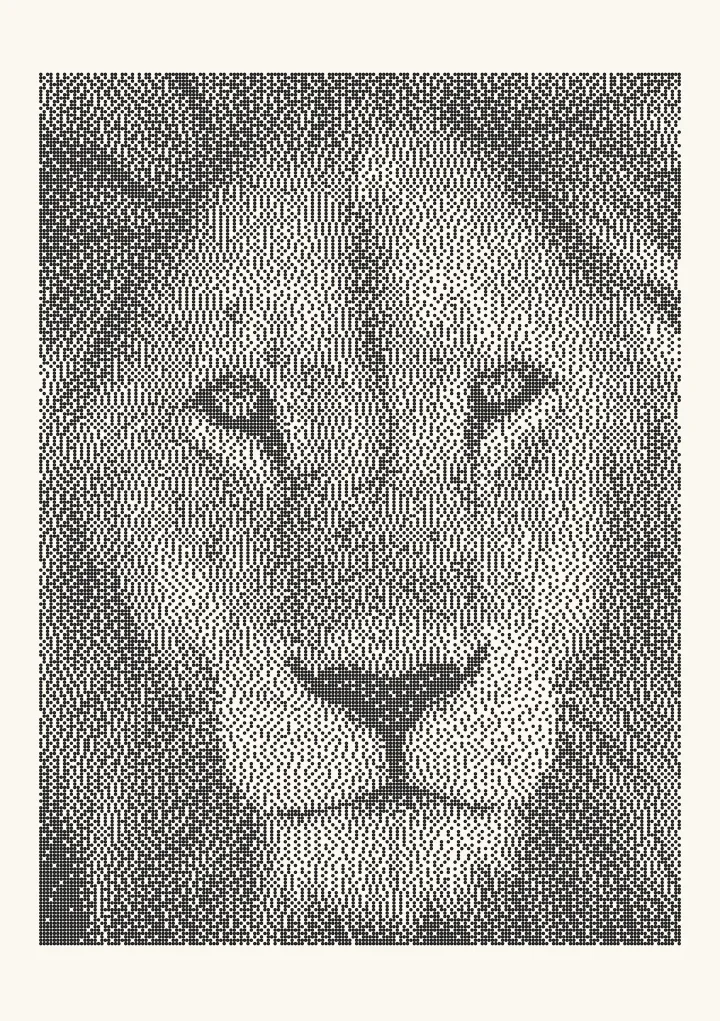

Sample render. Slide to compare the photo with the result. Try the algorithm live below.
Rendered in 0.0 ms on your machine. Every dot here is what a pen or laser would put down.
A laser engraver is a 1-bit device on most materials: a spot is either burned or it is not. To engrave a photograph you convert it to a pattern of dots whose density follows the tone, which is dithering, and then send that pattern at a resolution that matches the laser’s spot size. Use Jarvis, Stucki or, better, Ostromoukhov or Zhou–Fang for photos; use a resolution of about 25.4 ÷ spot diameter in DPI; lighten the mid-tones to allow for burn spread; and, if you dither outside your laser software, send the result as a 1-bit PNG with LightBurn’s Pass-Through turned on so it is not resampled.
Try the recommended algorithm, Ostromoukhov, on your own image.
Why lasers need dithering
LaserGRBL’s documentation puts it plainly: many materials do not respond linearly to laser power. Below a threshold nothing happens; above it, the surface turns black. Wood chars, slate turns white, anodised aluminium loses its dye, glass fractures. There is no mid-tone to be had by varying power, so grey has to be made from the density of full-power dots. Even on materials that do respond to power (leather, some woods), dithered engraving is more repeatable than greyscale power modulation because it does not depend on the laser’s response curve staying the same across the job.
LightBurn’s documentation lists ten image modes and calls Jarvis “Generally the best choice for smooth-shaded or photo images”. Third-party guides say the image mode decides most of how the engrave will look, and they are right. The rest of this page is about choosing it well and feeding it the right pixels.
Match DPI to spot size
The most common mistake is engraving a 300 DPI dither with a laser whose spot is 0.15 mm wide. Adjacent dots overlap, every mid-tone goes black, and the picture turns into a silhouette.
The rule: one dither pixel should be about one burned mark wide, so DPI = 25.4 ÷ the width of the mark in millimetres. That gives 254 DPI (a 0.1 mm line interval) for a 0.1 mm mark, a safe default for most hobby lasers. The laser engraving DPI guide has spot sizes by machine and a test to measure your own.
Which algorithm
| Algorithm | Character on a laser | Use it when |
|---|---|---|
| Floyd–Steinberg | Fine, accurate, but worms burn as diagonal streaks in skies and skin | Small images, high DPI |
| Jarvis–Judice–Ninke | Smoother, fewer worms, slightly soft | LightBurn’s default recommendation for photos |
| Stucki | Like Jarvis, a touch sharper, faster | Photos with fine detail |
| Atkinson | Fewer dots, faster job, blown highlights | Line art, high-key subjects, quick tests |
| Ostromoukhov | Blue-noise texture at every tone, no worms, no patches | Photographs; the best error diffusion for lasers |
| Zhou–Fang | Ostromoukhov with cleaner mid-tones | Same, when mid-tones dominate (portraits) |
| Bayer 8×8 | Regular grid, immune to worms, visible pattern | Anodised metal, coated surfaces, a deliberate halftone look |
| Blue noise | Even grain, no structure, tolerant of dot gain | Wood and slate, where burn spread blurs fine texture |
| Newsprint / halftone (in LightBurn) | Clustered dots of varying size | Coarse materials, decorative work, when single dots will not hold |
Every worm in an error-diffusion output becomes a burnt line. On a screen you would never notice it; on a piece of maple it is a scratch through a cheek. That is why the three-neighbour, variable-weight algorithms from Ostromoukhov (2001) and Zhou and Fang (2003) matter here more than anywhere: they were designed to give every grey level a blue-noise texture, and the result engraves as even grain. Most laser software does not include them, which is the main reason to dither outside it. The algorithm comparison has the kernels.
Dot gain: dots grow when you burn them
A dither assumes each black pixel becomes a black square of one pixel. A laser makes a round burn that is larger than the pixel, with charred edges on wood and a halo of heat-affected material. That is dot gain, and it is large: on plywood a 0.1 mm interval with a 0.15 mm burn can push a 50% dither to 70% or more visual coverage. Mid-tones go dark, shadows fill in, and the picture looks muddy.
Two corrections, in order:
- Lighten before dithering. Apply a curve that pulls the mid-tones up so that after gain they land where they should. Plotcaster’s Ink spread control (Photo > Expert) does this with a single value; 15–25% is a reasonable start for wood, 5–10% for anodised aluminium, 0 for slate (which engraves light on dark, so gain works the other way and you invert the image).
- Reduce power or increase speed until a single dot is barely smaller than the interval. Do this once per material and write it down.
Run a test grid, 10 patches from 10% to 100% coverage, and measure the reflected tone with a photo. If 50% reads as 65%, that is your gain, and you set the compensation to match.
Linear light, again
Photo files store perceptual brightness. A pixel value of 128 is about 21% of white in physical light, so dithering it to 50% ink makes it far too pale; about 79% ink, leaving 21% paper, matches the light it represents. In Plotcaster that choice is Tone matching (Photo > Expert): Perceptual, the default, makes the drawing look like the photo; Linear matches measured ink coverage and prints darker. On a laser, where burns already spread, start with Perceptual and correct with Ink spread.
Workflow: dither outside, engrave in pass-through
LightBurn’s Pass-Through setting engraves an image without resampling it: one image pixel becomes one laser pixel, and the line interval follows the image’s size and DPI. LaserGRBL has a “1bit BW dithering” tool in its tool options, and its guide advises a high quality resolution for the best result. Dithering outside lets you use whatever algorithm and tone handling you want.
- Prepare. Crop the photo in an editor if it needs it, and blur it slightly if it is noisy; noise dithers into grit. In Plotcaster, choose the paper size and margin: the picture is fitted inside the margins, which sets its size in millimetres. Adjust contrast so that the picture uses the full range.
- Dither. In the Dither style, choose Ostromoukhov or Zhou–Fang and set Ink spread (Photo > Expert) for the material. The cell pitch only affects the on-screen preview and the SVG; the laser PNG is dithered separately at its own DPI.
- Export a 1-bit PNG at your laser’s DPI, 254 in this example. The export dithers the photo again at exactly that resolution, one pixel per laser spot, and writes the DPI into the file. The pixel dimensions are then the width in mm × 10.
- Import into LightBurn. Put it on an Image layer and turn on Pass-Through. Keep the image at the size it imports at and check that the line interval reads 25.4 ÷ DPI (0.1 mm). If it must be larger, go back and re-export rather than scaling it.
- Burn a test strip at the edge of the material with three power settings. Pick the one where single dots are just under the interval.
- Engrave. Bi-directional scanning is fine; the dither has no direction of its own.
Because the dither and the laser pixel grid are now the same grid, what you saw on screen is what burns, and the preview darkness in LightBurn stops lying to you.
Materials
- Plywood and basswood. High gain, brown-black dots. 170–254 DPI, Ostromoukhov or blue noise, 15–25% gain compensation, air assist on to limit charring.
- Hardwoods (maple, cherry). Less gain, cleaner dots. 254–318 DPI, Ostromoukhov or Zhou–Fang.
- Slate, black granite, black anodised aluminium. Engrave light on dark: invert the image first. Low gain, fine dots hold well; 318–500 DPI on a CO₂ or fibre laser, Bayer or blue noise both look good.
- Painted or coated metal, tumblers. Ablation is binary and crisp; blue noise at 254–318 DPI.
- Glass and clear acrylic. Fractures rather than burns and the spot spreads; 170–254 DPI, blue noise, and expect the lightest tones to vanish, so lift shadows and cut highlights before dithering.
- Leather. Responds to power as well as dots; a dithered engrave at 254 DPI with a coarse algorithm (Jarvis) is more repeatable than greyscale.
Line-mode alternatives
A dithered bitmap is not the only way to engrave a picture. Vector line styles engrave with the laser moving continuously along paths instead of pulsing across a raster, which is faster on sparse images and gives a hand-drawn look. Plotcaster’s engrave, hatch and edges styles export SVG with stroke colours per layer, which LightBurn uses to split cut settings automatically. The pen plotter guide explains those styles; the difference for a laser is only that the “pen width” is the kerf.
Try it
Load a photo with Ostromoukhov dithering, set Ink spread to 20%, and export a 1-bit PNG at 254 DPI for Pass-Through. Nothing is uploaded; the file is generated in your browser.
FAQ
What is the best dithering for laser engraving photos? Ostromoukhov or Zhou–Fang if your software has them or you can dither externally; otherwise Jarvis, which is LightBurn’s recommendation. Avoid plain Floyd–Steinberg on wood, where its worms burn as streaks.
What DPI should I use for laser engraving a photo? 25.4 divided by your spot size in millimetres. 254 DPI for a 0.1 mm spot; 170 for a 0.15 mm diode; 500 or more only on fibre lasers. Higher than the spot size allows makes everything darker, not sharper.
Why does my engraved photo come out too dark? Dot gain: burned dots are larger than dither pixels. Lower the DPI to match the spot, reduce power, and lighten the mid-tones before dithering (dot-gain compensation).
Should I use Grayscale mode instead of dithering? Only on materials that respond proportionally to power, mainly leather and some woods for relief work. On most materials there is no proportional response and dithering is more predictable.
Do I need to invert the image for slate or black anodised aluminium? Yes. Those materials go light where the laser hits, so black in your image should mean “do not fire”. Invert before dithering.
Can I engrave the SVG line styles on a laser? Yes. Import the SVG into LightBurn as vectors and use a Line layer. Set the line spacing in the style to at least your kerf so adjacent lines do not merge.