Photo to wood burning pattern: clean outlines to transfer or laser-score
Turn a photo into a wood burning pattern: clean single-line outlines at true size to print and transfer, a shading guide, and an optional laser score.
Published
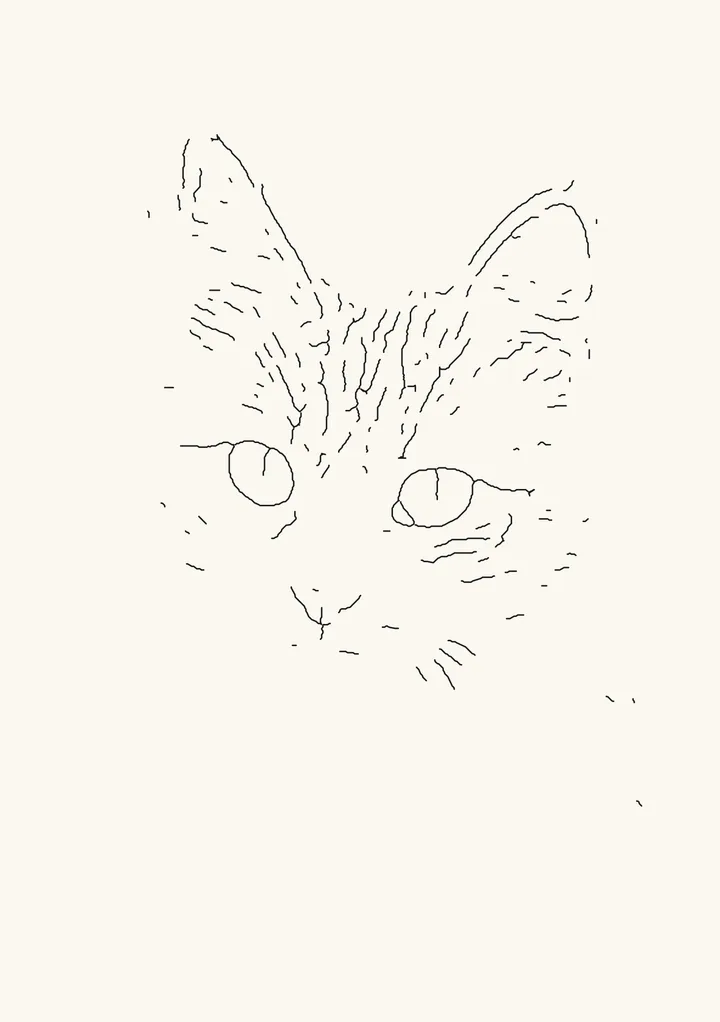
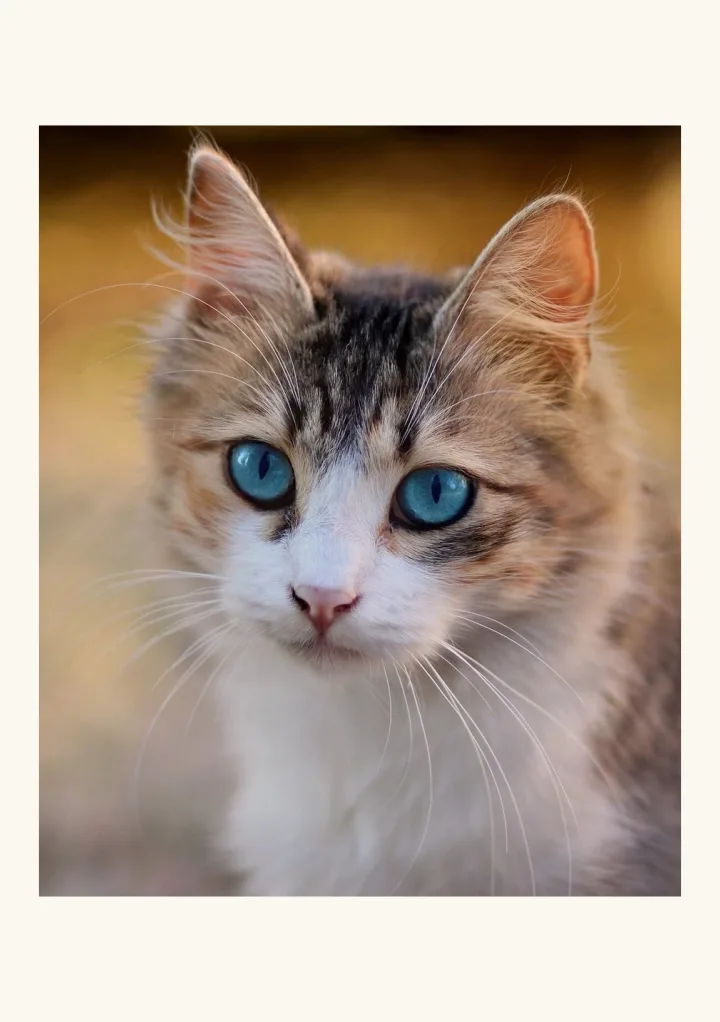
Sample render. Slide to compare the photo with the result.
A wood burning pattern is the main lines of a picture at the real size of your board, ready to transfer to the wood and burn over. To make one from a photo, reduce it to its outlines, print them at 100% and trace them onto the board through transfer paper. Plotcaster’s Edges style does the reducing. It draws single-stroke outlines of the main shapes, with no doubled lines and no shading, and saves them as an SVG in millimetres, so the printout comes out at the size you set. For the shading, print a second sheet in Engrave as a tone map to follow while you burn. If you have a laser engraver, it can score the outlines onto the board in place of a transfer.
Make a pattern from your photo. It’s free, needs no account and runs in your browser, so the photo is never uploaded.
Choose a photo that burns well
Edges draws a line wherever the photo has a strong edge, so the photo decides how clean the pattern is:
- One clear subject. A face, a pet, a building, a flower. Crop close so the subject fills the frame.
- A plain or blurred background. Every edge in a busy background becomes a line you then have to ignore. The cat above was photographed against a soft blur, which is why the pattern has nothing behind it.
- Strong, directional light. Shadows with hard edges give outlines to follow. Flat, overcast light gives few.
- Sharp focus where it matters. Eyes in focus give clean circles; a soft photo gives broken lines.
Crop the photo before you load it. Plotcaster fits the whole photo inside the page margins and has no crop tool.
Make the pattern
- Open Edges in the editor and choose Use your own photo, or drop the photo on the page.
- Under Paper, pick the size closest to your board, then set Margin for the border you want. The photo is fitted inside the margins, and that sets the pattern’s size in millimetres. If the board isn’t a paper size, pick the next size up and use a wider margin.
- Adjust the outlines. The two main controls:
- Detail, from 0.15 to 2 mm, is the blur applied before edges are found. Smaller finds finer lines; larger keeps only the big shapes. The default is 0.5 mm.
- Edge threshold is how strong an edge must be to become a line. Raise it until only the outlines you’ll burn are left. The default is 0.005.
- Tidy the lines under More Edges controls:
- Bridge gaps up to joins broken line ends closer than this, so strokes read as one. The default is 1.5 mm, and it goes up to 5 mm.
- Ignore fragments shorter than throws away short pieces, which are usually specks of texture. The default is 1 mm; raise it to clear out fur and grain.
- Edge sharpness decides whether soft edges break up or come through as solid lines.
- Set Pen width, under Pen and inks, to a line you can see well enough to trace. It changes the line in the preview and in the SVG. The default, 0.35 mm, prints a fine line.
- Open Export, choose Pen plotter · SVG, and download.
A pattern for burning wants fewer lines than a drawing does. You will add texture by hand, so keep the outlines that place the features and let the fine texture go.
Print at 100%
The SVG is sized in millimetres: an A5 pattern is a 148 × 210 mm page. Print it from a program that keeps those units. In the print dialog, choose 100% scale or Actual size, turn off any “fit to page” or “shrink to fit” option, and check that the paper size is the one you chose in Plotcaster, 148 × 210 mm for A5. If the dialog shows any scale other than 100%, the pattern comes out bigger or smaller by that much.
Edges draws no frame, so there is no border to measure on the printout. Use the picture’s box instead. Open Export, choose Laser · PNG and set Area to Image only: the first figure it shows is the picture’s width × height in millimetres. Every line of the pattern sits inside that box, so a pattern that measures wider than the box was scaled up. Most patterns measure less, because their lines stop short of the photo’s edges; the cat’s outlines stop well inside its 132 mm width. Before you tape it down, lay the printout on the board to check that it covers the area you plan to burn.
If the pattern is bigger than your printer’s paper, a print shop can print it at full size, or choose a smaller paper in Plotcaster.
Transfer the pattern to the wood
Pyrography guides describe a few ways to get the lines onto the board. Blade and Burnish’s beginner’s guide lays carbon paper face down on the wood and tapes the design over it. Without transfer paper, it shades the whole back of the printout with pencil and traces over the front. Hobbycraft’s guide traces the design onto tracing paper, turns the sheet over and traces it again on the back, then lays that side on the wood and scribbles over the top. Whichever you choose:
- Sand the board smooth and wipe off the dust.
- Place the printout where you want it and tape it along one edge, so it lifts like a flap and drops back in the same place.
- Put the transfer layer against the wood: carbon or graphite transfer paper face down under the printout, the pencil-shaded back of the printout, or the back-traced side of the tracing paper.
- Trace every line with a pencil or a stylus, with steady, even pressure: firm enough to transfer, but not so hard that you dent soft wood, because a dent can show through the burn.
- Lift the flap and check before you take the paper away, so you can go back for lines you missed.
- Burn over the lines, then clean off any transfer marks still showing.
Try your transfer method on an offcut of the same wood first, to see how dark its lines come out and whether they clean off afterwards.
A shading guide
An outline tells you where to burn. It doesn’t tell you how dark. For that, print the same photo on the same paper in a style that turns tone into lines, and keep it beside the board while you burn.
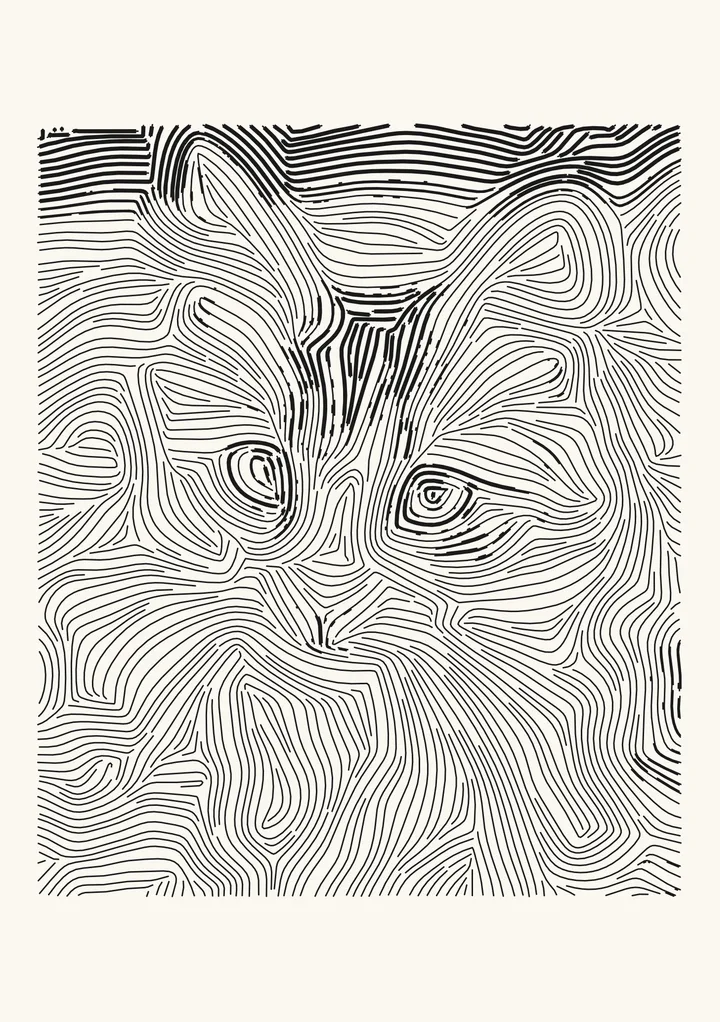
Engrave is a good tone map for pyrography. Its lines follow the direction of the form, which is the direction you would pull the pen along fur or hair, and they swell into bands where the photo is darkest. Where the guide shows a heavy band, burn darker. Where the lines thin out, burn lighter. Raising Tone curve above 1 lightens the mid-tones, so only the real shadows carry weight. Hatch is the alternative if you shade with straight crosshatching: its extra passes turn to new angles only in the darker tones.
Both pages come out on the same paper and margin as the outline, so the two line up if you lay one over the other.
Or score it with a laser
If you have a laser engraver, it can put the pattern on the board for you. Import the SVG as vectors on a line layer and run one light pass, at the lowest power that leaves a visible mark on an offcut of the same wood. You get a faint guide line where the transfer would be, with no graphite to erase, and then burn by hand over it. The photo to laser engraving converter covers score lines, and engraving the whole photo, in more detail.
When Edges is too literal
Edges draws what is in the photo, edge for edge. When that gives too many broken lines, try a style that draws more like a person:
- Sketch follows the direction of each edge, so its lines come out long and continuous. Turn off Shade the shadows for outlines only.
- Draw uses a neural drawing model that puts lines where an illustrator would, instead of on every edge. The first time, it downloads about 45 MB, then runs on your device.
For drawing a pattern with a cutting machine’s pen instead of transferring it, see photo to line drawing for Cricut.
FAQ
What size should I print the pattern? The size of the area you will burn. Choose the paper closest to your board and set Margin so the pattern fits the space. The SVG keeps its millimetres, so print at 100% and it comes out that size.
Why does my pattern have broken lines? Edges only draws where an edge is strong enough. Raise Bridge gaps up to to join line ends that almost meet, or lower Edge threshold so fainter edges come through. A sharper photo with harder light helps most.
Can I make a pattern from a pet photo? Yes: the cat above is one. The eyes, nose and ear outlines come through first, and fur turns into short strokes. Raise Ignore fragments shorter than to clear those out, then add the fur by hand.
Is my photo uploaded? No. Plotcaster runs in your browser, and the photo and the pattern stay on your device.