Image and SVG to G-code for pen plotters: GRBL, Marlin and Klipper
Turn a photo into G-code for a GRBL, Marlin or Klipper pen plotter in your browser: pick the machine, origin and bed size, check the pen commands, send it.
Published
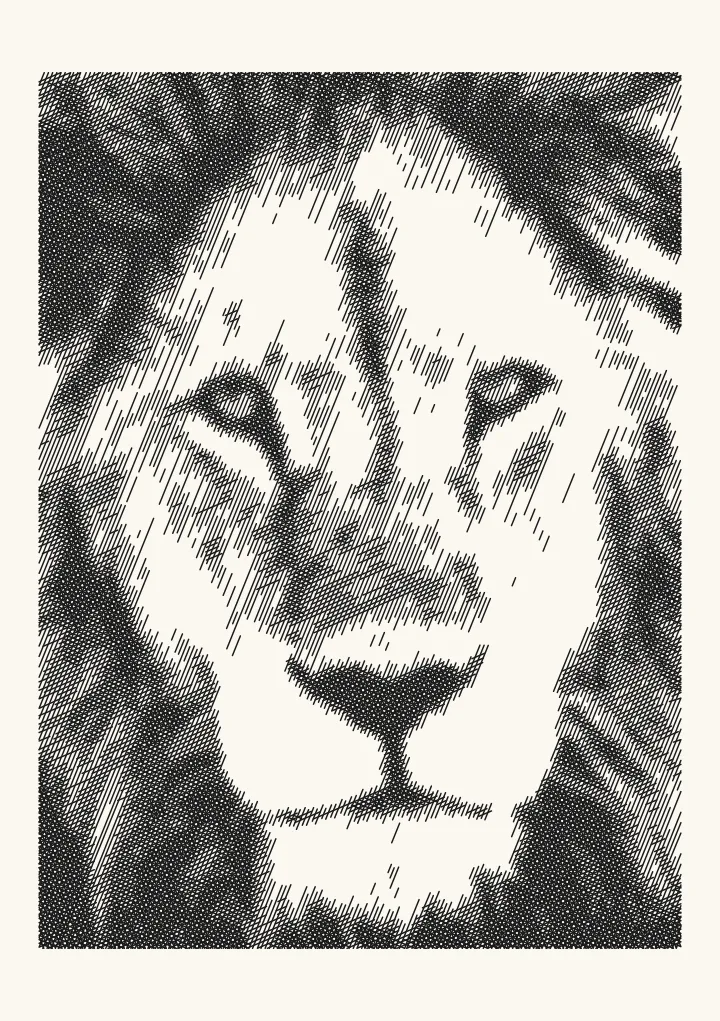

Sample render. Slide to compare the photo with the result.
A GRBL or home-built pen plotter doesn’t read photos, and it doesn’t read SVG. It reads G-code, a text file of moves such as G1 X60 Y20 plus the commands that lower and lift the pen. Plotcaster writes that file in your browser. Turn the photo into lines, open Export, choose Pen plotter · SVG and set File to G-code. Then pick your machine, say where zero is and how far the machine travels, and download.
There are seven machine presets: a servo or a Z axis on GRBL, Marlin and Klipper, and a GRBL laser that burns the lines. AxiDraw and NextDraw plot the SVG through their own software, so leave File on SVG for them. If your machine lifts the pen some other way, download the SVG and take one of the other routes.
What the G-code looks like
G-code is one command per line. GRBL v1.1’s list of supported codes covers what a plotter needs: G20 and G21 for units, G90 and G91 for distance mode, G0 to G3 for motion, and M3, M4 and M5 for spindle control (GRBL README). This is Plotcaster’s own output for a 40 mm square, 20 mm in from the front-left corner of a 200 mm square page, with the GRBL plotter · servo pen (M3 S) preset at its defaults:
; Plotcaster G-code: square
; Machine: GRBL plotter - servo pen (M3 S)
; Firmware: GRBL servo build, laser mode off ($32=0)
; Units: millimetres (G21), absolute coordinates (G90)
; Origin: X0 Y0 at the bed's front-left corner, Y+ away from you
; Negative workspace? Set a G10 L2 P1 offset once from the console, not here
; Bed: 200 x 200 mm. Page 200 x 200 mm at X0 Y0
; Pen: up M3 S20, down M3 S30, then G4 P0.5 (seconds)
; Speeds: draw F2000, travel G0 at the machine's max rate
; Pauses: none
; Bounds: X20-60 Y20-60 mm (this file)
; Cut at the page edge: nothing
; Cut at the bed edge: nothing
; Lines: 30. Every move stays inside the bed
; Check first: $32=0; pen up and down from the console; X0 Y0 at the page
;   corner; $110/$111 cap speeds; run with $C, then a dry run
G21
G90
M3 S20
G4 P0.5
G0 X20 Y20
M3 S30
G4 P0.5
G1 X60 Y20 F2000
G1 X60 Y60
G1 X20 Y60
G1 X20 Y20
M3 S20
G4 P0.5
G0 X0 Y0
The lines that start with ; are comments, and GRBL throws them away as it reads each line. The header names every assumption the file makes, so you can check them against the machine before anything moves. Then come the moves:
G21andG90set millimetres and absolute coordinates, so every X and Y is a position on the bed, not a step from the last point.M3 S20lifts the pen before anything moves, andG4 P0.5waits half a second for the servo. GRBL’s dwell is in seconds: “P is in seconds and must be greater than 0.0” (GRBL interface).G0is a travel move with the pen up.M3 S30lowers the pen.G1is a drawn move at the feed rateF, in millimetres per minute. The first move of every line carries the feed rate.- At the end the pen goes up and the carriage parks at X0 Y0.
This preset’s file doesn’t end with M2. GRBL’s program end also switches the spindle output off, like M5 (gcode.c), and grbl-servo turns M5 into 0 degrees (grbl-servo), which can lower the pen.
Export G-code from a photo
- Open Hatch in the editor and add a photo. Hatch draws straight parallel lines, which suit a slower machine. Squiggle draws one wavy line per row, with very few pen lifts. Photo to SVG for AxiDraw and iDraw compares the other styles.
- Set the paper to the area you’ll plot: A6 to A2, US Letter, Tabloid or a 200 mm square.
- Set Pen width to your pen, and the line spacing a little wider than the line it draws.
- Leave the plotter settings at their defaults. They join touching ends and sort the paths, so the file draws them in order with little pen-up travel.
- Open Export, choose Pen plotter · SVG and set File to G-code.
- Choose your Machine. Set Origin to the corner where your machine’s X0 Y0 is, and Bed size to how far it travels, in millimetres.
- Open Machine settings and check every number against your machine. The Marlin and Klipper presets have no default pen-down Z or servo angles, and the Klipper servo preset has no default servo name, so Download stays blocked until you enter values you measured.
- Read Before you run it in the dialog, then download the G-code.
Before you download, the dialog shows the paper, the drawing’s line count, a plot time at your drawing speed and the file size. The time uses your drawing speed, the pen waits and, on Marlin and Klipper, the travel speed. On GRBL, G0 runs at the machine’s own maximum rate, which the file can’t know, so travel is timed at the drawing speed and the time there is rougher.
The seven machine presets
Pick the preset that matches your firmware and the way the pen moves. The preset sets the commands in the file; the numbers are under Machine settings, with a Reset to preset link. Every preset starts with a 200 × 200 mm bed, the origin at the front left and the page at X0 Y0, the same 200 mm travel as GRBL’s defaults (defaults.h) and Marlin’s X_BED_SIZE (Configuration.h).
| Machine | Firmware | Pen commands in the file | Starting values |
|---|---|---|---|
| GRBL plotter · servo pen (M3 S) | A servo build of GRBL, laser mode off ($32=0) | Up M3 S20, down M3 S30, each then G4 P0.5 | Wait 500 ms, draw 2,000 mm/min |
| GRBL plotter · Z pen | GRBL 1.1 | Up G0 Z2, down G1 Z0 F1000 | Pen down Z0, lift 2 mm, Z speed 1,000 mm/min, draw 2,000 mm/min |
| Marlin printer · Z pen | Marlin 2 | Up G0 Z… F1000, down G1 Z… F1000 | No pen-down Z: enter yours. Lift 2 mm, draw 2,000, travel 3,000 mm/min. Pauses with M0 or @pause |
| Marlin · servo pen (M280) | Marlin 2 with NUM_SERVOS 1 or more | M400, then M280 P0 S and the angle, then G4 P300 | No angles: enter yours, in whole degrees. Servo 0, wait 300 ms, draw 2,000, travel 3,000 mm/min |
| Klipper printer · Z pen | Klipper | Up G0 Z… F1000, down G1 Z… F1000 | No pen-down Z: enter yours. Lift 2 mm, draw 2,000, travel 3,000 mm/min. Pauses with PAUSE |
| Klipper · servo pen (SET_SERVO) | Klipper with a [servo] section | SET_SERVO SERVO= your servo’s name, ANGLE= the angle, then G4 P300 | No name or angles: enter yours. Wait 300 ms, draw 2,000, travel 3,000 mm/min |
| GRBL laser · burn the lines | GRBL 1.1f or later, laser mode on ($32=1) | M5 and M4 S0 first, burns with G1 … S100, travels with G0 … S0, M5 and M2 at the end | Power 10% of S-max 1,000, burn 1,000 mm/min, 1 pass |
Where the starting values come from:
- GRBL servo. GRBL-Plotter’s own defaults: pen up S20, pen down S30, a 0.5 second delay after each, and a feed of 2000 (GRBL-Plotter settings). grbl-servo takes
M3 Svalues from 0 to 255 for 0 to 180 degrees. Keep laser mode off. Without it, “Every time a spindle stateM3 M4 M5or spindle speedSxxxis altered, Grbl would come to a stop”, so the pen moves between strokes, not during one. Laser mode skips those stops, and in laser mode “aG0rapid motion mode orG38.xprobe cycle will never turn on and always disable the laser” (GRBL laser mode). - GRBL Z. GRBL-Plotter lifts to Z2 with a Z feed of 1000, and its pen-down default is Z−2. Plotcaster starts at Z0: zero Z with the tip just touching the paper. Some machines count Z the other way: vpype-gcode’s iDraw 2.0 profile lifts the pen to Z0.5 and draws at Z5 (vpype-gcode profiles). Jog Z first and see which way lifts.
- Marlin and Klipper Z. There’s no safe default for pen down on a printer, because it depends on the pen and its holder: jog down until the tip touches the paper and enter that Z. Every travel carries its own feed rate, because Marlin’s
G0_FEEDRATEis off by default, with 3000 as its example value, and every drawn move repeatsG1, becauseGCODE_MOTION_MODESis off too (Configuration_adv.h). - Marlin servo.
M280“RequiresNUM_SERVOSof 1 or more” (M280), and “Servo index starts with 0” (Configuration.h). Marlin moves the servo as soon as it readsM280, so the file sendsM400first, which makes Marlin “wait in a loop until all moves in the planner are completed” (M400). The 300 ms wait is Marlin’sSERVO_DELAY. Marlin’s dwell is in milliseconds: “G4 P500 ; Dwell for 1/2 second” (G4). - Klipper servo. The command is
SET_SERVO SERVO=config_name [ANGLE=<degrees> | WIDTH=<seconds>], and Klipper’s dwell isG4 P<milliseconds>(Klipper G-Codes). Angles run from 0 tomaximum_servo_angle, 180 by default. The 300 ms wait is borrowed from Marlin. - GRBL laser. GRBL’s default
$30, the S value at full power, is 1000 (defaults.h), and 1,000 mm/min is LaserGRBL’s default speed (LaserGRBL source). The 10% power is Plotcaster’s choice for a first test burn, not a machine fact. G-code for GRBL lasers covers the laser side, including raster engraving.
If the pen moves some other way, with a solenoid, a custom M-code or a macro, download the SVG and convert it with a tool that takes your own pen commands.
Origin, page position and bed size
- Units. Every file starts with
G21for millimetres andG90for absolute coordinates, and its numbers have at most three decimals. If a test square comes out 25.4 times too big or too small, something is mixing inches and millimetres. - Origin. An SVG puts its origin at the top left, with Y running down the page. The Origin control says which corner of the bed X0 Y0 is. At Front left, Y goes away from you, so the file flips Y and the top of the drawing gets the highest Y, the same flip as vpype-gcode’s
vertical_flip. At Back left, Y comes towards you, and there’s nothing to flip. The flip happens once, in the file. If the sender or the machine’s settings flip Y as well, the plot comes out mirrored top to bottom. - Page position. Under Machine settings, Page position X and Y say where the page’s corner sits from X0 Y0. At 0 and 0, that corner of the page is X0 Y0.
- Where zero is. Zero X and Y at that corner of the page. Or, if homing puts X0 Y0 somewhere else, set Page position to the distance from there to the page.
- Bed size. GRBL’s
$130and$131set “the maximum travel from end to end for each axis in mm”, but Grbl uses them only for soft limits ($20), which also need homing enabled (GRBL settings). So the file checks for itself. Every move stays inside Bed size, and drawn moves also stay on the page. Lines that reach past the bed are left out rather than squashed along the edge; the header counts them and the dialog shows a warning. - Negative coordinates. Machines that count into negative coordinates need a one-off workspace offset from the console,
G10 L2 P1with your machine’s size, as LightBurn’s Common GRBL setups explains. The file never sets offsets or homes the machine.
Pen changes
With two or three inks, turn on Pause for pen changes. Before each layer whose pen differs from the one before, by colour or pen width, the file lifts the pen, parks at X0 Y0 and stops with the command your firmware understands. Layers drawn with the same pen run on without a stop.
- GRBL:
M0. Resume from your sender, or send~, “Cycle Start / Resume” (GRBL commands). The file never usesM1, which Grbl ignores: “Optional stop not supported” (gcode.c). - Marlin:
M0with a message such asChange pen: 2 Bluefor the LCD. “Without an LCD controller orEMERGENCY_PARSERthis command is ignored”; withEMERGENCY_PARSER,M108continues (M0). If you print from OctoPrint, set Pause with to @pause (OctoPrint): OctoPrint pauses the job itself, and @ commands “will never be sent to the printer but instead trigger functions inside OctoPrint” (OctoPrint). The file never usesM600, Marlin’s “Filament Change”. - Klipper:
PAUSE, which needs a[pause_resume]section in printer.cfg. Continue withRESUME(Klipper G-Codes).
Or turn on One file per layer (zip): each ink gets its own G-code file, and you run them one after another, with no pauses.
Other routes
If none of the presets fits your machine, download the SVG (File SVG) and convert it with a tool that takes your own pen commands. SVG to G-code on this site is one: it takes any SVG and whatever pen up and pen down lines you type. The file is plain, which is what a converter wants:
<svg … width="148mm" height="210mm" viewBox="0 0 148 210">
  <g inkscape:groupmode="layer"
     inkscape:label="1 Black"
     id="layer1"
     fill="none"
     stroke="#1a1a1a"
     stroke-width="0.3"
     stroke-linecap="round"
     stroke-linejoin="round">
    <path d="M24.512 40.1L25.87 41.335L27.204 42.61"/>
One unit is one millimetre. Paths are straight segments with no fills and no transforms, and they’re clipped to the paper.
svg2gcode
svg2gcode will “Convert vector graphics to g-code for pen plotters, laser engravers, and other CNC machines”. It runs as a web app and as a command-line program, and it’s open source under the MIT licence. These options matter for a pen plotter. Each quote is the option’s own help text from the README:
--on, “G-Code for turning on the tool”: your pen-down command.--off, “G-Code for turning off the tool”: your pen-up command.--begin, “G-Code for initializing the machine at the beginning of the program”: units, absolute mode and pen up.--end, “G-Code for stopping/idling the machine at the end of the program”: pen up, then park the carriage.--feedrate, “Machine feed rate (mm/min)”: the drawing speed.--origin, “Coordinates for the bottom left corner of the machine”: where the page’s bottom-left corner sits in machine coordinates.--tolerance, “Curve interpolation tolerance (mm)”: little to do, because Plotcaster’s file has no curves.--dimensions, “Override the width and height of the SVG (i.e. 210mm,297mm)”: not needed, because the file is already in millimetres.
svg2gcode converts to a bottom-left origin itself (source). An example command line. The pen commands are placeholders; replace them with yours:
svg2gcode-cli drawing.svg --on 'M3 S90' --off 'M5' --feedrate 1500 -o drawing.gcodevpype with vpype-gcode
vpype-gcode adds a gwrite command to vpype, and its output is “flexible export to gcode or any other text-based format”. You describe the format in a profile, kept in ~/.vpype.toml or in another file loaded with vpype’s --config option. This is the README’s example command:
vpype read butterfly.svg gwrite --profile gcode butterfly.gcodeA sketch of a pen plotter profile, again with placeholder pen commands:
# Example profile. Replace M3 S90 and M5 with your machine's pen commands.
[gwrite.penplotter]
unit = "mm"
document_start = "G21\nG90\nM5\n"
segment_first = "G0 X{x:.3f} Y{y:.3f}\nM3 S90\n"
segment = "G1 X{x:.3f} Y{y:.3f} F1500\n"
line_end = "M5\n"
document_end = "M5\nG0 X0 Y0\n"
vertical_flip = true
segment_first is the travel to the start of each line, so the pen goes down after it; line_end lifts the pen when the line is done. vertical_flip will, per the README, “correctly transform the document from the standard SVG top-left origin to the standard gcode bottom-left origin”. It needs the page size set, and vpype read takes that from the SVG’s width and height. Then run vpype read drawing.svg gwrite --profile penplotter drawing.gcode.
DrawingBotV3 and PlotterForge
DrawingBotV3 turns images into drawings and exports G-code itself, according to its README. PlotterForge “can send a job to a Grbl-compatible plotter over serial”, so there’s no G-code file for you to handle (plotterforge.com). Pen plotter software compared lists these and more.
Send it to the machine
A G-code file doesn’t plot by itself. A program on your computer, a G-code sender, passes it to the machine’s controller. If your machine’s maker supplies its own software, start with that. Otherwise, for GRBL, Universal G-Code Sender is “a Java based, cross platform G-Code sender, compatible with GRBL, TinyG, g2core and Smoothieware”. It’s open source under GPL-3.0, with downloads for Windows, Mac and Linux. On Windows, LaserGRBL, a “Laser optimized GUI for GRBL” made for laser engraving, can also load a G-code file with a job preview and send it. A converted printer on Marlin or Klipper takes the file the way it takes a print file.
Test before you draw
- Pen commands. From your sender’s console, send the pen-up and pen-down commands from the header, such as
M3 S20andM3 S30. Up must clear the paper and the clips. - Check mode, on GRBL. Send
$C, run the file and watch for errors. Grbl’s check mode processes every line “as it would in normal operation, but it does not move any of the axes, ignores dwells, and powers off the spindle and coolant”, and it also checks for soft limit violations if they’re enabled. Send$Cagain to leave it, and Grbl performs “an automatic soft-reset” (GRBL commands). - Dry run. Take the pen out, or keep it raised, and run the file from your sender. Watch the carriage stay on the sheet from start to finish.
- Test square. Plot a small square with a pen. Measure it with a ruler, check it’s drawn where you expected, and check the pen lifts cleanly. On a servo pen, a tail after a stroke or a missing start means Pen wait is too short.
- Small version. Export the drawing on A6 and plot that before the full sheet. It uses the same commands and settings at a fraction of the time.
FAQ
Can Plotcaster export G-code? Yes, for GRBL, Marlin and Klipper pen plotters that lift the pen with a servo or a Z axis, and for GRBL lasers. In Export, choose Pen plotter · SVG and set File to G-code. To raster engrave a dithered photo on a GRBL laser, choose Laser · PNG and set File to G-code; G-code for GRBL lasers explains that file.
Can Plotcaster export HPGL?
No. DrawingBotV3’s Premium edition exports HPGL, according to its README. vpype’s write command writes HPGL for a list of devices named with --device, including the HP 7475A.
What program sends the G-code to the plotter? A G-code sender. Universal G-Code Sender works with GRBL, TinyG, g2core and Smoothieware on Windows, Mac and Linux, and many machines come with their maker’s own software. Converted printers take it like a print file. Do a dry run with the pen raised before the first plot.
What feed rate should I use?
The pen presets draw at 2,000 mm/min, GRBL-Plotter’s default, and the GRBL laser preset burns at 1,000 mm/min, LaserGRBL’s default; Marlin and Klipper presets travel at 3,000 mm/min. GRBL’s $110 and $111 set “the maximum rate each axis can move”, and when Grbl plans a move it checks whether the move “causes any one of these individual axes to exceed their max rate” (GRBL settings). Their default is 500 mm/min (defaults.h), so on a machine still on the defaults no axis moves faster than that, whatever the file says. Start well below your machine’s maximum, plot the test square, and raise Drawing speed until corners start to wobble or lines break, then back off.
Why does my Marlin plot not stop for pen changes?
Marlin ignores M0 without an LCD controller or EMERGENCY_PARSER, so it carries on drawing with the same pen. Build Marlin with EMERGENCY_PARSER and continue with M108, set Pause with to @pause if you print from OctoPrint, or export one file per layer.
Why doesn’t Klipper stop for pen changes?
The file stops with PAUSE, which needs a [pause_resume] section in printer.cfg. Without one, Klipper only reports an unknown command and carries on. Add the section, and continue with RESUME. Klipper has no M0 either, which is why the Klipper presets never use it.
Why does my plot come out mirrored? The file flips Y once, to match the Origin you chose. If your machine’s X0 Y0 is really at the other corner, or the sender or the machine’s settings flip Y again, the drawing comes out mirrored top to bottom. Set Origin to the corner where X0 Y0 really is, and flip nowhere else.
Why is my plot off the paper? The machine’s zero isn’t where the file put the page’s corner. Zero X and Y at that corner, or set Page position to where the page sits from X0 Y0, check Origin, and do a dry run first.