Multi-colour pen plotting: layers, pen changes and registration
Plot in more than one colour: one SVG layer per pen named for AxiDraw layer control, pauses between pens, registration tips and styles that overprint well.
Published
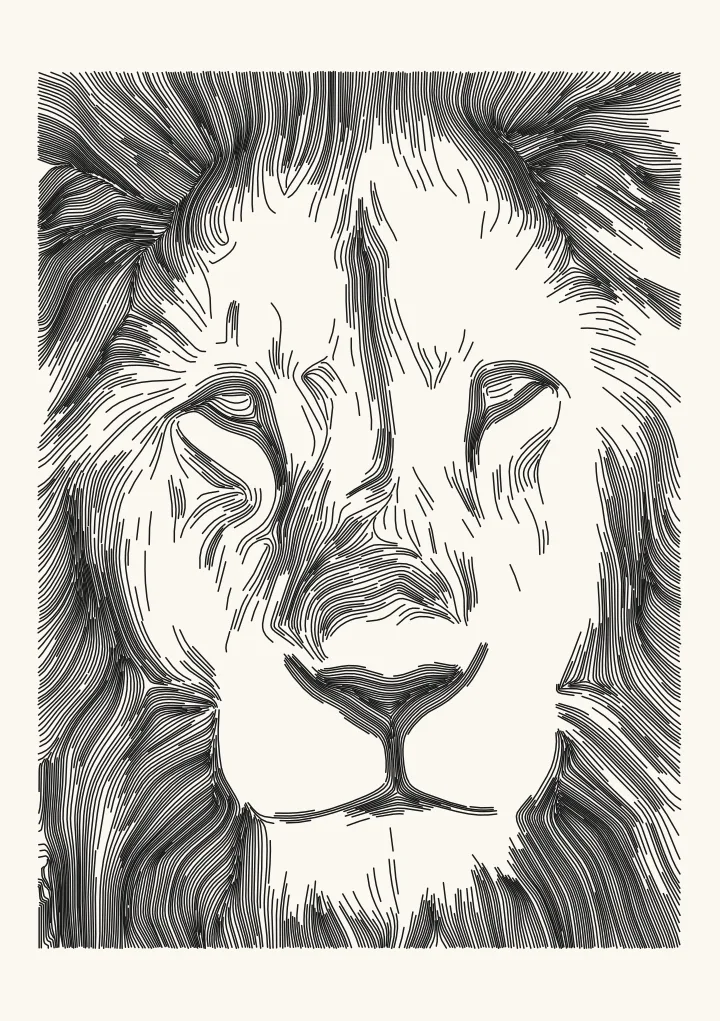

Sample render. Slide to compare the photo with the result.
A pen plotter draws with one pen at a time, so a picture in several colours is really several drawings on one sheet. Put each colour on its own layer. Plot the first layer, change the pen, plot the next, and don’t move the paper or the machine in between. That’s the whole method. The rest of this guide makes each part reliable: a file the driver can plot layer by layer, a pause at the right moment, and pens that land exactly where the last one did.
If you searched for AxiDraw multiple colors, the AxiDraw software handles this with named layers, and the naming rules are below.
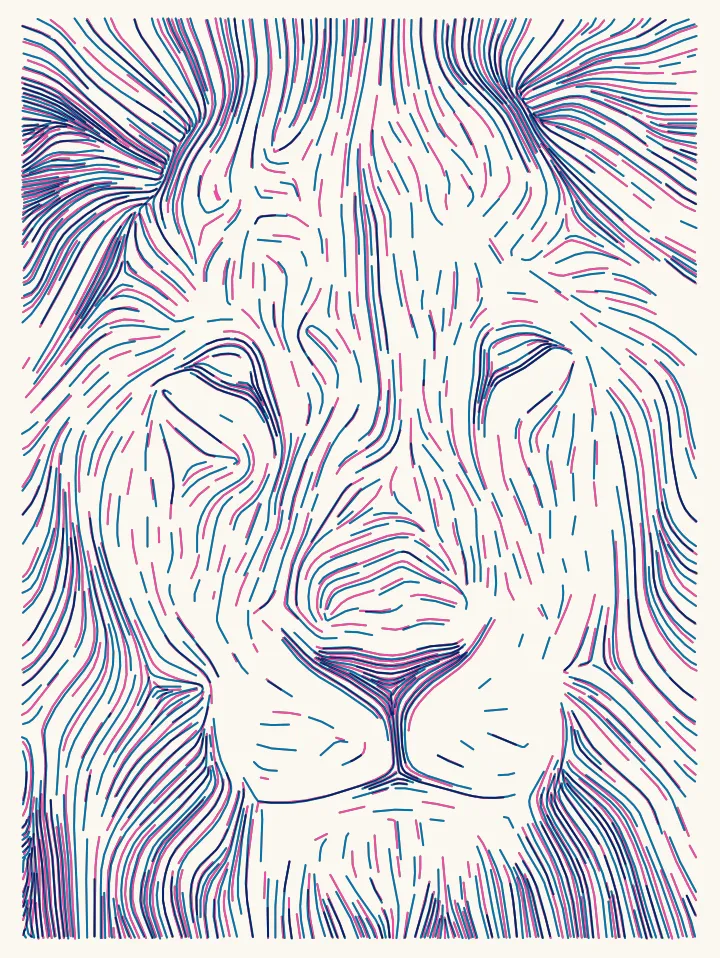
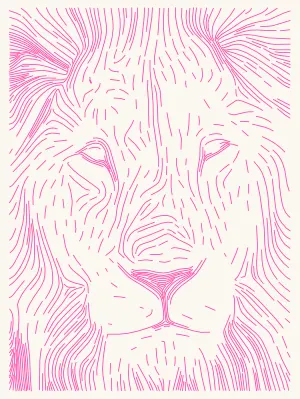
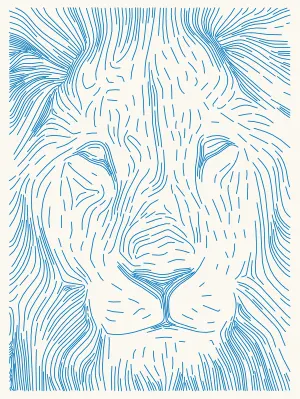
The Flow lion in two inks on a 148 × 197 mm sheet with 0.4 mm pens, and each layer on its own. Plot times are Plotcaster's estimates for an AxiDraw at moderate speed.
How AxiDraw reads layers
Evil Mad Scientist’s AxiDraw Layer Control page sets the rules:
- A layer is an Inkscape layer. “An Inkscape layer is a g (group) element with attribute inkscape:groupmode=“layer"", and its name is the
inkscape:labelattribute. - Its name starts with a number. The basic syntax “requires only that the layer name begins with an integer in the range of 0 to 1000.” That number is how you choose a layer to plot, from the Layers tab in AxiDraw Control or with layers mode in the CLI or Python API.
- A leading
!means pause. “If the first non-whitespace character of the layer name is an exclamation point (!), it forces a pause to occur before plotting the layer”. That pause is your moment to change pens. - Codes set speed, height and delay.
+Ssets the pen-down speed (1 to 100),+Hthe pen-down height (0 to 100) and+Da delay in milliseconds before the layer. The codes go “at the start of a layer or immediately following the layer number or other escape sequences”, as in the wiki’s example223+D2500+H0 Forest floor.
So 1 Pink, 2 Blue and 3+S50 Black are three layers, and the third plots at pen-down speed 50.
What Plotcaster writes
Plotcaster’s SVG gives each ink its own top-level Inkscape layer, numbered in plot order and named after the ink. The two-ink lion above exports like this:
<svg … width="148mm" height="197mm" viewBox="0 0 148 197">
  <g inkscape:groupmode="layer"
     inkscape:label="1 Fluorescent Pink"
     id="layer1"
     fill="none"
     stroke="#ff48b0"
     stroke-width="0.4"
     stroke-linecap="round"
     stroke-linejoin="round">
    <path d="M…"/>
  </g>
  <g inkscape:groupmode="layer"
     inkscape:label="2 Blue"
     id="layer2"
     fill="none"
     stroke="#0078bf"
     stroke-width="0.4"
     stroke-linecap="round"
     stroke-linejoin="round">
    <path d="M…"/>
  </g>
</svg>
One unit is one millimetre. Every path is a stroke, with no fills and no transforms, and each layer carries its ink’s colour, so a driver that splits by colour finds the same layers. When a drawing has more than one ink, the export panel offers two switches:
- Pause for pen changes “Starts the names of layers 2 and up with ’!’, so AxiDraw stops and waits for you to change pens.” Layer 2 becomes
!2 Blue. - One file per layer (zip) means “Each pen gets its own SVG that keeps its layer number, all in one zip.” Use it for a driver that doesn’t read layers, or when each pen is a separate plot. With it on, there’s no pause switch, because each file is a plot of its own.
Plotcaster doesn’t write +S, +H or +D codes. To slow down one pen, rename its layer in Inkscape, for example to 2+S30 Blue.
Choosing inks in Plotcaster
Under Pen and inks, choose the main ink, then use Add ink to put up to two overprint inks on top: three inks in all, one layer each. In the editor’s words, “Each ink becomes its own layer and overprints like a riso print. Plot one layer, change pens, plot the next.” A few styles, such as Draw, work with one ink only, and the panel says so.
Pick the ink closest to the pen you’ll use. The colour sets the preview and the stroke colour in the file; the plot’s colour comes from the pen.
Plotcaster’s own advice on order: plot the lightest ink first and the darkest last, so small registration errors hide under the dark lines. The number at the start of each layer name is the plot order, and in AxiDraw Control you can plot the layers in whatever order suits your pens.
Registration: making the next pen land on the last
Registration is how exactly one colour lines up with another. Evil Mad Scientist’s Multicolor Plot Tips gives the practical rules:
- Set every pen to the same height. “A good method to ensure that each pen is inserted to the same height as the previous is to use a spacer to set the height.” “A typical spacer might be a small, flat piece of metal or plastic, about 3 mm (1/8 inch) thick or a little bit thicker.”
- Keep the motors on. “Precise positioning with the AxiDraw requires that the XY motors are continuously left on (energized) for the entire duration of your plotting session, start to finish.” If the carriage moves while the motors are off, the next layer starts from the wrong place.
- Don’t bump anything. “It may be obvious, but take care not to bump either the AxiDraw or the paper while switching pens.”
- Hold pens upright. “When making multi-pen plots, we strongly recommend that you use only the vertical (rather than diagonal) position for your pen.”
- Insert each pen the same way round. The wiki suggests marking each pen “indicating which way is ‘forward’ towards the pen-holding thumbscrew”, and tightening the thumbscrew with the same light pressure each time.
Plotcaster adds one more: tape the paper down, so it can’t creep between layers.
Styles that overprint well
- Flow. Long lines that follow the form. Each ink traces its own lines, and the two sets weave through each other, as in the pink and blue lion above.
- Hatch. Straight parallel lines. Where two colours cross, they read as a mix, and every mark is easy for a pen.
- Stipple. Dots in two inks sit side by side like a halftone print.
Keep the spacing at least a little wider than each pen’s line. Two inks that both flood the shadows turn muddy, and the second pen then drags through wet ink.
Maps in three inks
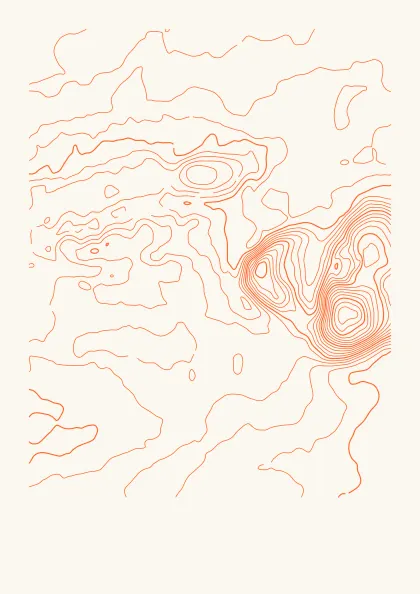
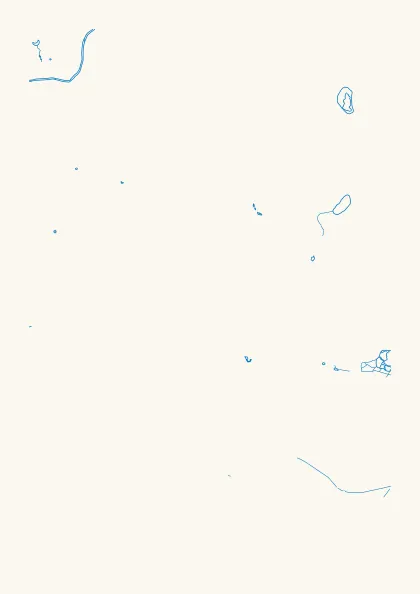
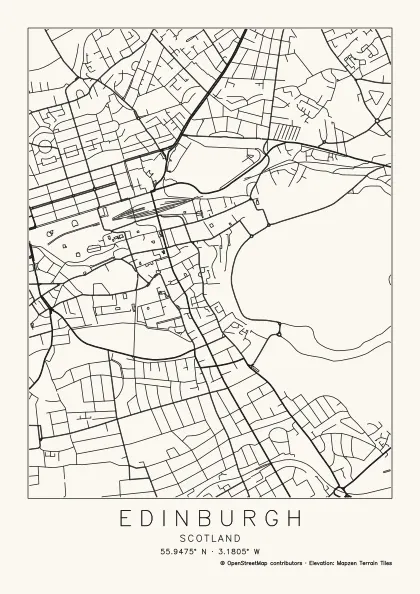
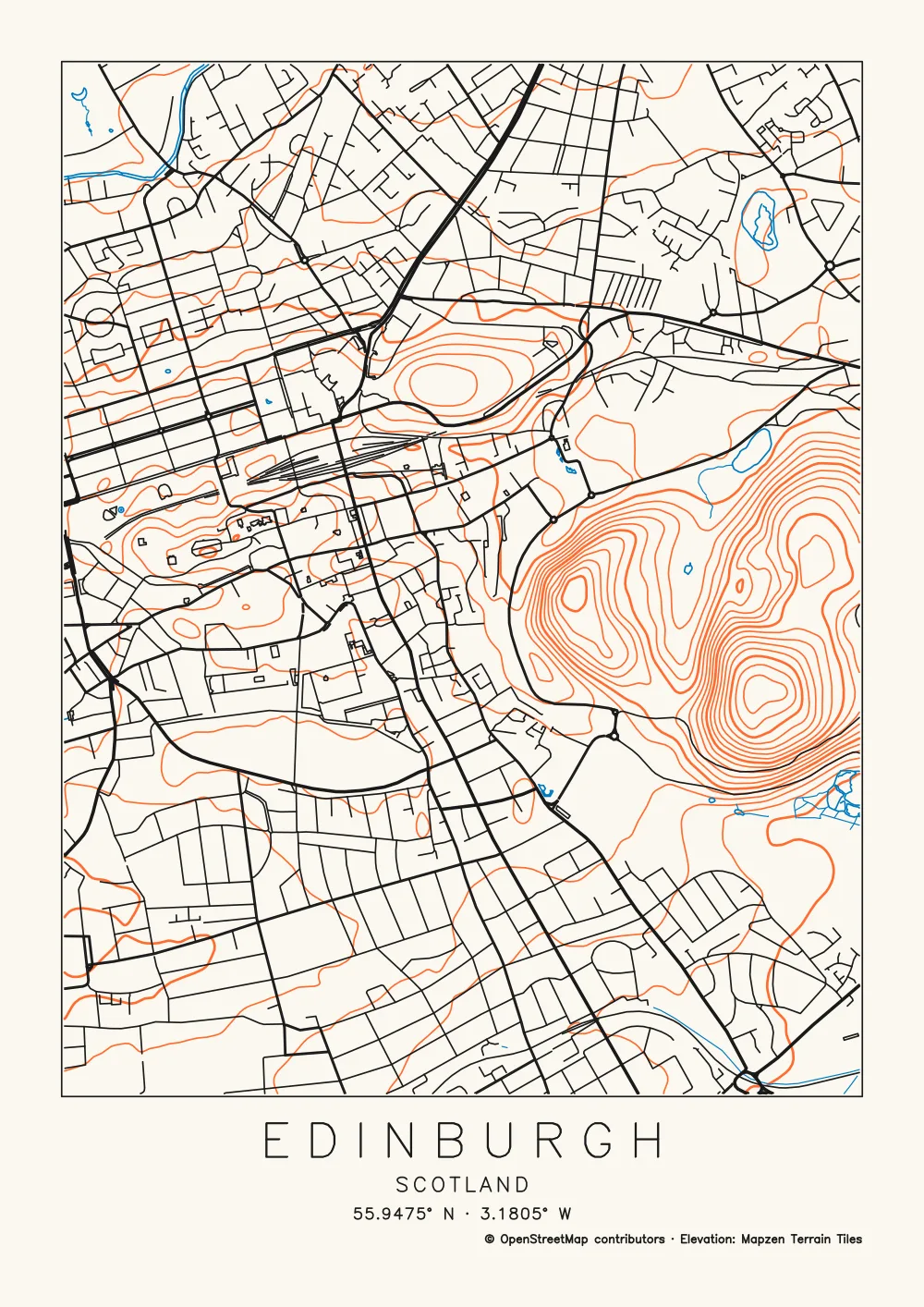
The Map style splits a place by feature rather than by tone, with three ink settings: Roads and rail ink, Water ink and Contours ink. The Edinburgh example below is on A4 and has eight layers in three colours. In orange are the contours and bold contours (75 paths); in blue, water and streams (51); in black, streets, rail, major roads, and the frame and title (1,059). The layers are numbered in that order, so orange plots first and black last. See maps for pen plotters and pen plotter map art.
Other drivers and machines
- saxi “automatically splits apart layers based on SVG stroke colors or group IDs”, so a Plotcaster file splits by ink either way.
- vpype can “create, modify and process multi-layer vector files for multi-colour plots”, for example to merge several drawings onto one sheet before plotting.
- Drivers that don’t read layers. Turn on One file per layer (zip) and plot each SVG in turn, leaving the paper where it is.
- Cricut and other cutting machines. Cricut Help says that when you upload an SVG, “all vectors are imported as cut lines”, and that “Vector images designed with layers will appear on your Canvas as a grouped image” (How to upload images into Design Space). Ungroup the image, select each ink’s lines and change their Operation to Draw. See Photo to line drawing for Cricut.
For which program does what, see pen plotter software compared. For spacing, tone and export in depth, read photo to SVG for AxiDraw and iDraw.
FAQ
How do I pause between pens on an AxiDraw?
Start the layer’s name with !. Plotcaster does this for you with Pause for pen changes: layers 2 and up are named !2 Blue and so on, and AxiDraw waits before each one.
Why are my colours misaligned? Usually the pens sit at different heights or angles, the motors were turned off between layers, or the paper moved. Set each pen with a spacer, keep the motors energised, hold pens upright and tape the paper down.
Can a Cricut plot two colours? Yes, with one pen per ink. Add a second ink in Plotcaster and upload the SVG. Design Space brings every line in as a cut line, so ungroup the image, select one ink’s lines and set their Operation to Draw, then do the same for the other. Cricut’s Selecting Operation article notes, “You can change the Operation of multiple layers at once.” See Photo to line drawing for Cricut.
How many inks can I use? Plotcaster draws a photo in up to three inks: the main ink and up to two overprint inks. AxiDraw’s layer numbers run from 0 to 1000, so the driver isn’t the limit.