How to make flow field art: from noise or from a photo
What a flow field is, how noise-driven and photo-driven fields differ, how evenly spaced lines are traced, and the spacing and pen settings that plot well.
Updated
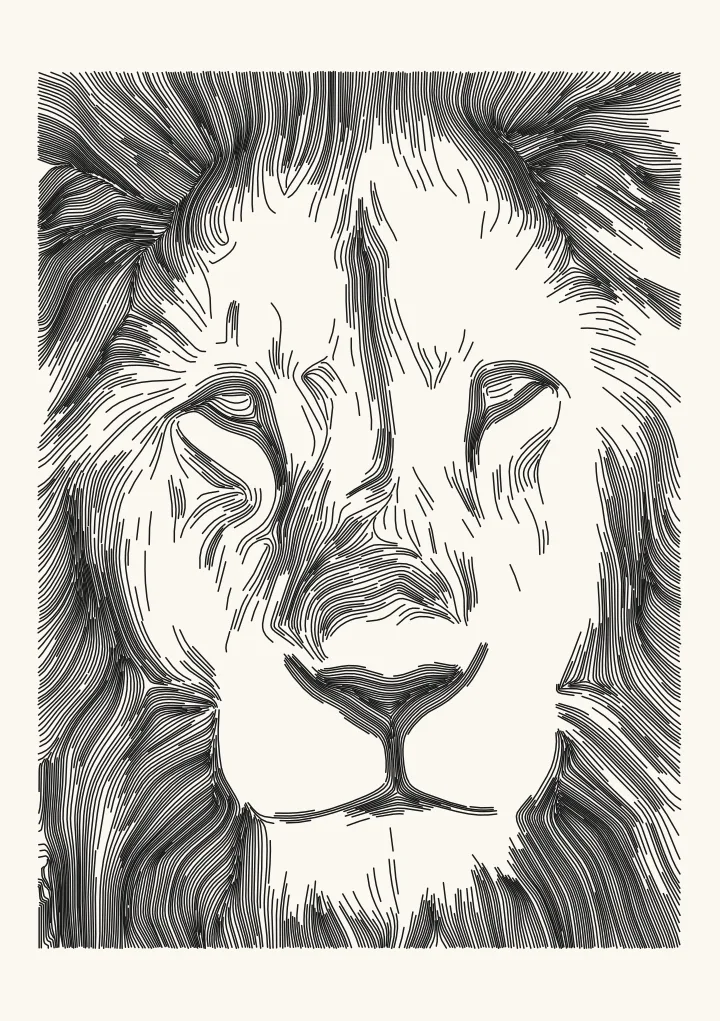

Sample render. Slide to compare the photo with the result.
A flow field is a grid of directions laid over the page. To make flow field art, you pick starting points, take small steps in the direction the grid gives at each point, and keep the path you trace. Hundreds of those paths, kept from running into each other, make the sweeping lines people know from generative art. Most tutorials fill the grid with noise and write the code in p5.js. You can also take the directions from a photo, so the lines run along a face, through fur or around the folds of cloth, and you can do that without writing any code.
This guide covers both. It explains what the field is, how noise fields and photo fields differ, how evenly spaced lines are traced, and which settings turn the result into a good plot.
What a flow field is
Tyler Hobbs’s essay Flow Fields (2020) is the usual introduction, and the method in it comes down to three steps:
- A grid of angles. The grid covers the canvas, and “At each point in the grid, you store an angle.”
- Curves that follow it. Start a curve at a point, look up the angle there, take a short step in that direction, and repeat.
- Short steps. A step should be small enough that no corners show. Hobbs says that for him it’s “usually around 0.1% to 0.5% of the image width”: about 0.15 to 0.75 mm on a 148 mm A5 sheet.
What goes into the grid decides what the drawing looks like. In Hobbs’s words, “About 90% of the time, people use Perlin noise to initialize the vectors.”
Noise fields and photo fields
| Noise field | Photo field | |
|---|---|---|
| Angles come from | A smooth noise function, such as Perlin noise | The edges in a photo |
| The lines show | Swirls that belong to no picture | The form: hair, cheekbones, folds, horizons |
| Tone comes from | Your choice of colours, line lengths and starting points | The photo: lines pack closer where it’s dark |
| Code | Usually needed | Not needed with Plotcaster’s Flow |
A photo field starts with the gradient: at every pixel, the direction in which brightness changes fastest. Single gradients are noisy, so Flow averages them over a small neighbourhood. The average is called a structure tensor, and it gives the main edge direction at each point. Flow turns that direction through 90 degrees, so lines run along edges rather than across them, the way an engraver hatches along the form. Flow smoothness sets the size of the neighbourhood, 2.5 mm by default. The science page shows particles riding this kind of field over a lion’s face.
Tracing lines that don’t collide
Where curves start matters. Hobbs uses one of three options: “Use a regular grid for starting points”, “Use uniformly random selection to pick the points”, or “Use circle packing”. He notes that random starts “will leave some clumps and some sparse areas”. To keep curves apart, “You can enforce a minimum distance between curves. At each step of a curve, check if any other existing curves are too close, and if so, stop.”
Hobbs’s essay also points to a paper on the same problem: Bruno Jobard and Wilfrid Lefer’s Creating Evenly-Spaced Streamlines of Arbitrary Density. Its selling point is control: “the user only needs to set the separating distance between adjacent streamlines”. Flow is built on that method, with one change for photos. Lines should crowd together in the shadows and spread out in the light, so the separating distance follows the tone:
- Spacing everywhere. In the darkest areas the gap between lines is Spacing in shadows. In the lightest areas that still get lines it’s Spacing in lights, and tones in between get a gap in between. Anything lighter than Keep highlights blank gets almost no lines, because the gap there jumps to four times Spacing in lights.
- Starting points. Candidates sit on a grid one light spacing apart, and the darkest are tried first, so the shadows get the longest lines.
- Growing a line. From its start, a line steps along the field in both directions. It stops when it leaves the picture or comes within half the local spacing of a line already drawn.
- New lines beside it. Every finished line offers new starting points on both sides, one local spacing away, so lines fill the page shoulder to shoulder instead of in clumps.
Because lines start and stop by spacing rather than on a grid, they come out long and the pen rarely lifts. At the default settings, the whole A5 test lion is 653 paths, about 9 minutes to plot.
Settings that plot well
The number that matters most is the spacing compared with the line your pen draws. For a 0.3 mm fineliner:
- Spacing in shadows: 0.35 to 0.4 mm, about 1.2 times the line, for a solid dark that still reads as lines. The default, 0.7 mm, gives a lighter, more open drawing.
- Spacing in lights: 2 to 3 mm for a rich drawing, or 6 to 8 mm for an airy one, like the wide example below. The default is 5 mm.
- Keep highlights blank: raise it until the background and the highlights come out clean.
- Flow smoothness: lower it to follow fur and fine detail, raise it for long, calm strokes or a noisy photo.
- Tone curve: above 1 lightens the mid-tones, which helps a pen that pools ink.
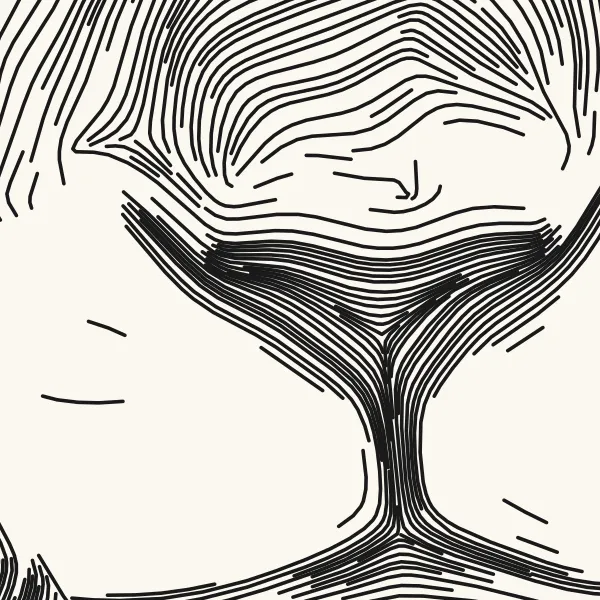
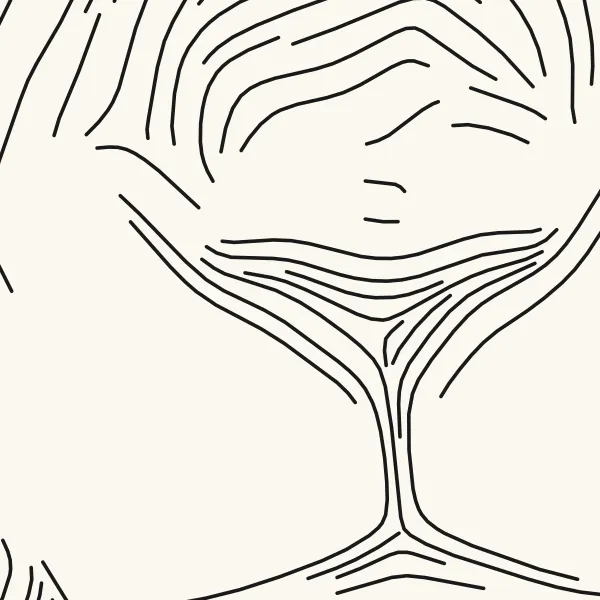
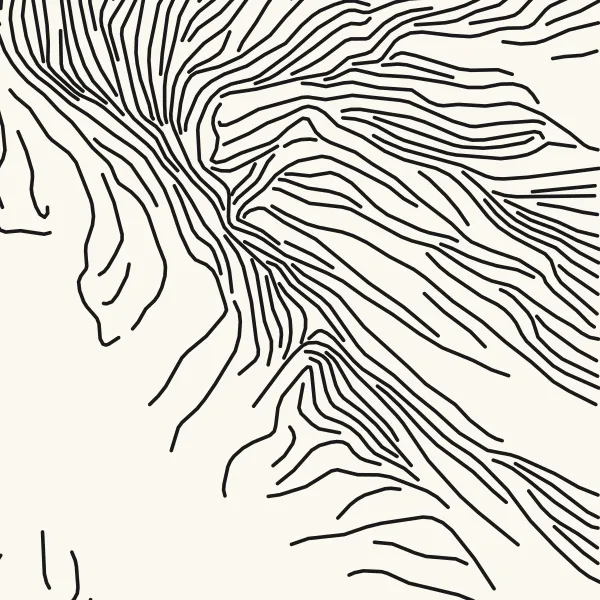
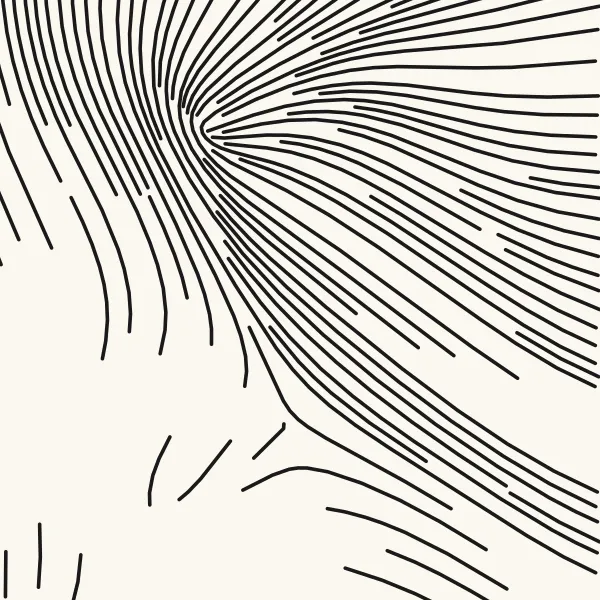
50 mm squares from whole A5 drawings: the lion's nose for spacing, the mane at the top right for smoothness.
The A5 test lion with a 0.3 mm pen, whole page:
| Settings | Paths | Line drawn | Plot time |
|---|---|---|---|
| Default: 0.7 mm in shadows, 5 mm in lights, smoothness 2.5 mm | 653 | 13.9 m | about 9 minutes |
| Tight: 0.4 mm and 3 mm | 1,144 | 25.1 m | about 16 minutes |
| Wide: 1.2 mm and 8 mm | 407 | 7.6 m | about 6 minutes |
| Smoothness 0.8 mm | 901 | 13.6 m | about 12 minutes |
| Smoothness 6 mm | 600 | 13.9 m | about 9 minutes |
Plot times are Plotcaster’s estimates for an AxiDraw at moderate speed. Tight spacing draws nearly twice the line of the default, and more than three times that of wide spacing. Smoothness hardly changes how much line there is, but it changes the character: the low setting follows every hair, and the high one sweeps past them. Following every hair breaks the line into more pieces, so the low setting lifts the pen more often and takes longer to plot.
Flow field art without code, or with it
Without code:
- Open Flow in the editor and add a photo. Portraits, animals and landscapes with clear directions suit it.
- Set Pen width to your pen, and Spacing in shadows to about 1.2 times it.
- Adjust Spacing in lights and Keep highlights blank until the picture reads at arm’s length.
- Check the path count and the plot-time estimate, then download the SVG. It’s in millimetres with one layer per ink, and the paths are already sorted.
With code, the heart of it is a short loop. Here it is in pseudo-code:
angles = a grid over the canvas, one angle per cell
         (from noise, or from a photo's edge directions)

for each starting point p:
    line = [p]
    repeat up to maxSteps times:
        a = angle of the grid cell under p
        p = p + stepLength × (cos a, sin a)
        if p is off the canvas, or too close to another line: stop
        add p to line
    write line as an SVG path, in millimetres
Write the paths with fill="none" and a stroke, in a document sized in millimetres, and any plotter driver can draw them. If you work in Python, vpype’s plug-in list includes vpype-flow-imager, to “convert image to flow field line art” (vpype plug-ins), and vpype itself can sort and merge the lines before you plot. Pen plotter software compared lists the other tools.
Flow in two inks
Flow suits more than one colour. Each ink traces its own lines, and the two sets weave through each other rather than sitting on top. Plot the lighter ink first, change pens, and plot the second layer without moving the paper. Multi-colour pen plotting covers layers, pauses and registration.
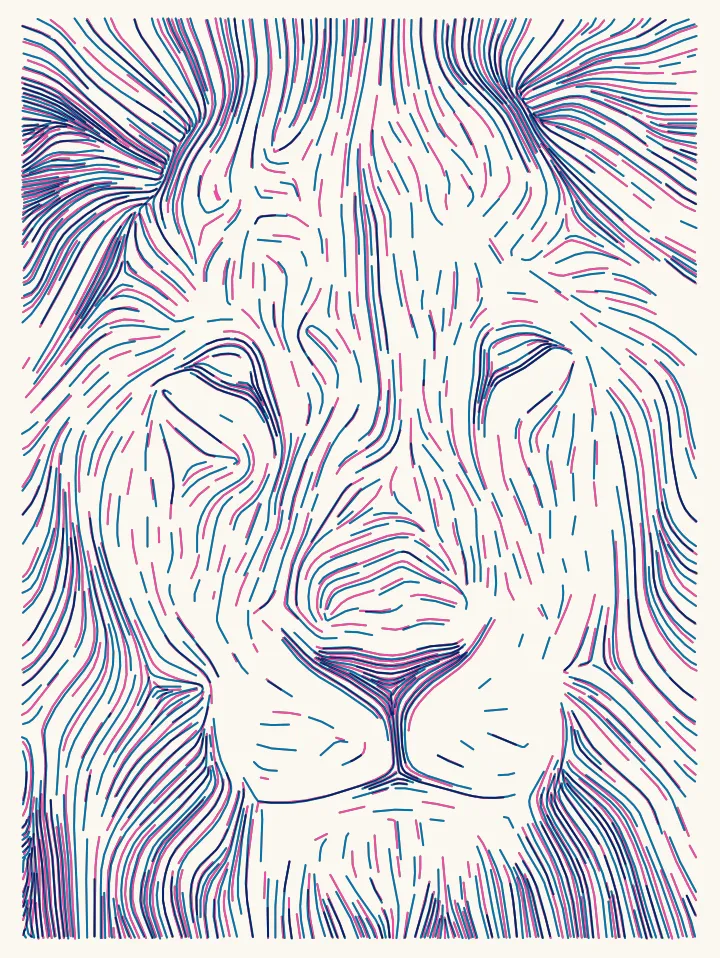
Two related styles work from the same idea. Engrave follows a field like Flow’s but keeps the lines at a steady pitch, swells each one to a sharp point in the shadows and crosses them into lozenges where it’s darkest. Hatch ignores the field and draws straight lines at set angles, adding passes where it’s dark. For tone calibration and export in depth, read photo to SVG for AxiDraw and iDraw.
FAQ
Do I need to code to make flow field art? No. Plotcaster’s Flow builds the field from a photo and traces the lines in the browser, and you download an SVG. Code is for fields that don’t come from a picture, such as noise, and for effects of your own.
Why do my lines clump? In a hand-coded field, random starting points leave clumps and gaps, and curves drift together wherever the field converges. Start from a grid or from circle packing, and stop each curve when it comes too close to another. In Flow, a line stops when it comes within half the local spacing of another, and lines get that close where they converge. So a dark patch that looks clogged usually means Spacing in shadows is less than about twice the pen’s line: raise it.
Which pen should I use? A fineliner or gel pen that draws a steady line, 0.3 to 0.5 mm. Set Pen width to match it, because the right spacing depends on it.
Why does the plot look darker than the preview? Ink spreads, so a plotted line covers more paper than its nominal width, and densely packed lines darken more than the screen suggests. Widen Spacing in shadows a little, raise Tone curve above 1 to lighten the mid-tones, or raise Ink spread under Photo, Expert. In the editor’s words, “Raise it if plots come out darker than the preview; the drawing is lightened to match.” A small test plot on the same paper tells you how much.